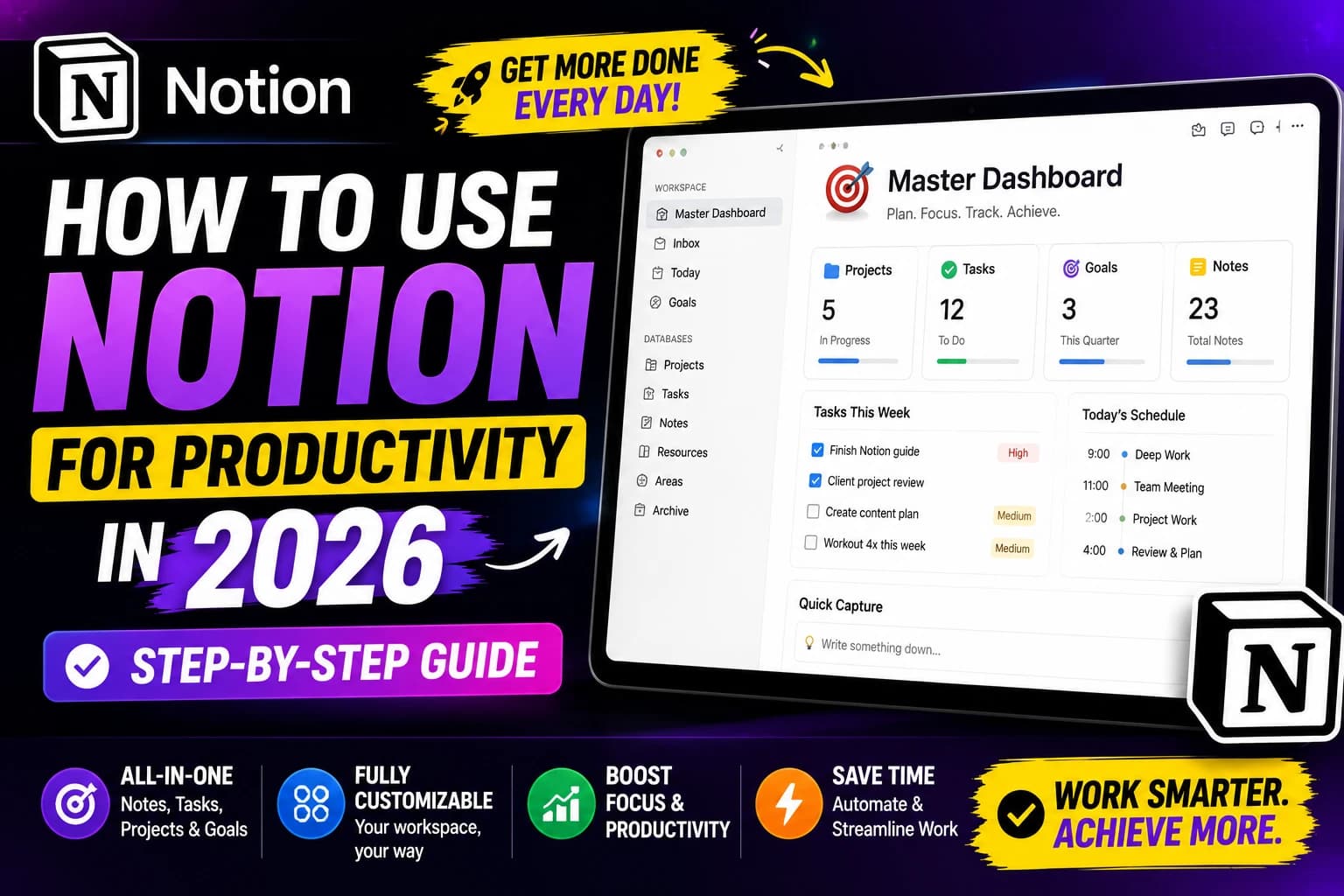
How to Use Notion for Productivity in 2026 (Step-by-Step Guide)
✅ Pros
- +Highly customizable with blocks, databases, and views
- +One workspace replaces Trello, Google Docs, Todoist, and spreadsheets
- +Relational databases link projects, tasks, and clients together
- +Free plan is genuinely usable, not a crippled trial
- +Notion Calendar enables drag-and-drop time-blocking
- +AI summarization saves time on meeting notes
❌ Cons
- -Initial setup takes 1–2 hours before it feels useful
- -Mobile experience is slower than dedicated task apps like Todoist
- -Notion AI writing quality is below Claude or ChatGPT for original content
- -No offline editing — requires internet connectivity to sync
- -Easy to fall into the "building instead of working" trap
Three months ago I had five different apps open every time I sat down to work. Trello for project tracking. Google Docs for writing. A spreadsheet for client info. Apple Notes for random thoughts. Todoist for daily tasks.
None of them talked to each other. I'd finish a task in Todoist, then manually update the status in Trello, then open Google Docs to write the deliverable, then search my spreadsheet for the client's email. Every small thing required a context switch.
I moved everything into Notion. Here's what that actually looks like in practice — not the theoretical productivity system, but the one that stuck after 60 days of daily use.
What Makes Notion Different From Other Productivity Tools
Notion combines notes, databases, task management, calendars, and wikis into one highly customizable platform. Think of it as Lego for productivity: you combine building blocks to create the exact structure you need.
That description is accurate but undersells the practical implication. The real difference is that in Notion, your project list and the documents inside each project live in the same place. Your client database and the notes from your last call with that client are linked. Your task list and the reference material for each task are one click apart.
That connection — between information and action — is what most productivity tools miss. Todoist knows your tasks. Google Docs holds your work. They don't know about each other. Notion does.
With Notion, you can plan projects, manage tasks, build knowledge bases, and even track personal habits — all within the same workspace.
The setup takes time. The payoff is a workspace that actually reflects how your work connects rather than forcing you to maintain parallel systems that slowly drift apart.
Step 1: Understand the Building Blocks Before Building Anything
Most people open Notion, feel overwhelmed, and either copy someone else's template wholesale or give up. Neither approach works long-term.
Every piece of content in Notion is a block. Type "/" in a page to bring up the block menu, where you can add headings, to-do lists, tables, toggle lists, callouts, and more.
Spend the first 20 minutes just playing with blocks. Create a blank page. Type /, add a heading. Type / again, add a toggle. Add a table. Add a database. Delete all of it. The goal is to understand that everything in Notion is modular and rearrangeable before you try to build anything permanent.
The concepts that matter most for productivity setups:
- Pages are your canvases. They can hold anything — text, databases, images, other pages nested inside them.
- Databases are where Notion becomes more powerful than a notes app. A database is a collection of pages with consistent properties — status, date, person, tags. The same database can be viewed as a table, a kanban board, a calendar, or a gallery. You build it once; you look at it in whatever format is useful in the moment.
- Views are the way you look at a database. A project database viewed as kanban shows you workflow stages. The same database viewed as a calendar shows you deadlines. The same database viewed as a table shows you everything at once. No other app does this as cleanly.
- Relations link databases to each other. Your task database can be linked to your project database. Your project database can be linked to your client database. Click a task, see which project it belongs to, click the project, see which client commissioned it. This is what replaces five separate apps.
Step 2: Build a Dashboard First — Not Individual Pages
The most common mistake is building specific pages before building a home base.
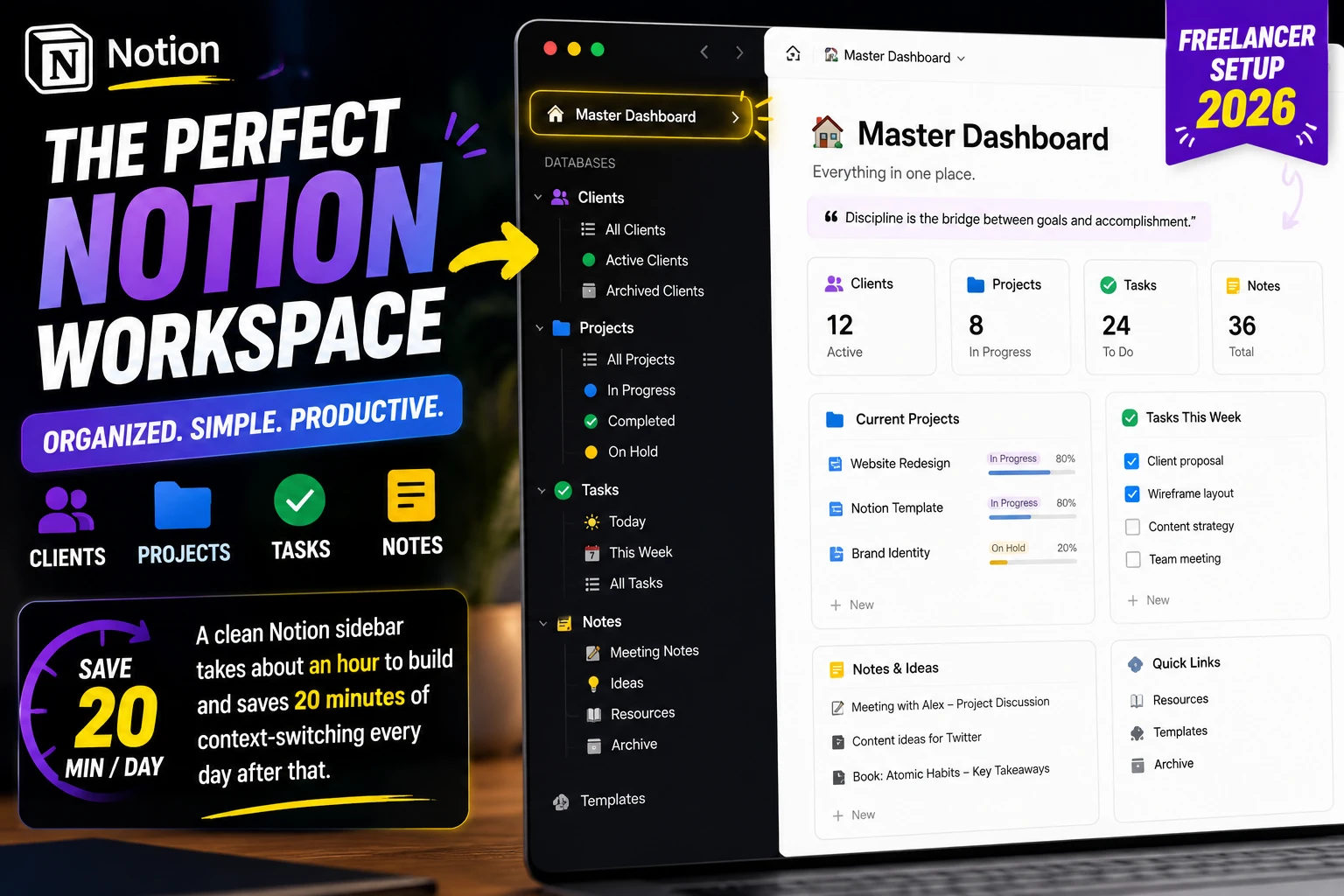
Your dashboard is the page you open every morning. It should show you: what's due today, what's in progress, what's coming up this week, and quick links to the things you access most.
A practical dashboard for a freelancer or knowledge worker includes:
- Today's tasks — a filtered view of your task database showing only items due today or marked as priority.
- Active projects — a filtered view of your projects database showing only status = In Progress.
- Quick links — a simple list of pages you open every day. Client folder. Writing templates. Reference notes.
- Weekly calendar — a Notion Calendar embed showing the week ahead.
Creating a personal dashboard gives you quick access to essential information and is one of the top productivity tips for Notion users.
Build the dashboard before you fill it with data. An empty dashboard with the right structure is more useful than a full collection of pages with no central navigation point.
Step 3: Set Up Three Core Databases
You don't need ten databases. Most productive Notion setups run on three:
Tasks Database
Properties: Name, Status (Not Started / In Progress / Done), Due Date, Priority (High / Medium / Low), Project (relation to Projects database).
Views to create: Board view by Status (your daily kanban). Table view filtered by Due Date = Today (your daily task list). Table view filtered by Priority = High (your weekly priorities).
Using Kanban boards for task organization and progress tracking is one of the most effective ways to use Notion for productivity.
Projects Database
Properties: Name, Status (Planning / Active / Review / Complete / On Hold), Client (relation to Clients database), Start Date, Deadline, Notes.
Views to create: Board view by Status (full project pipeline). Table view filtered by Status = Active (current work only).
Reference / Notes Database
Properties: Name, Type (Meeting Note / Resource / Idea / Template), Date, Related Project (relation).
Views to create: Table view by Type. Gallery view for visual browsing.
These three databases cover most knowledge work. Add a Clients or Contacts database if you manage relationships. Add a Reading List or Resources database if you consume a lot of research material. But start with three.
Step 4: Use Templates for Repeating Work
Notion offers a library of templates for personal planners, meeting notes, dashboards, project trackers, and more.
But the more valuable templates are the ones you build yourself for work that repeats in your specific context.
If you write the same type of document repeatedly — client proposals, meeting summaries, weekly reports — create a template page once. Every time you need that document, duplicate the template rather than starting from scratch.
In a database, you can set a default template so every new entry opens with the right structure pre-filled. A new client project automatically opens with a kickoff checklist, a notes section, and a deliverables tracker already in place.
Utilizing templates for consistent note-taking and planning saves significant setup time and keeps your workspace organized as it grows.
The templates worth building first: meeting notes (date, attendees, decisions, action items), project brief (objective, scope, timeline, deliverables), weekly review (what got done, what's carried over, what's priority next week).
Step 5: Use Notion Calendar for Time-Blocking
Notion Calendar connects your Notion databases directly to a calendar interface.
With Notion Calendar, you can time-block tasks from your database by drag-and-drop right on the calendar. Tasks with due dates appear on the calendar. You drag them into specific time slots. When you complete a task in the database, it updates on the calendar. When you move something on the calendar, the database updates.
For freelancers and knowledge workers, time-blocking — assigning specific hours to specific tasks rather than working through a list reactively — is one of the most reliable ways to close the gap between what you plan to do and what you actually do. Notion Calendar makes it frictionless because it connects directly to the task data you already maintain.
Google Calendar integration is available on all plans. If your existing schedule lives in Google Calendar, it syncs into Notion Calendar alongside your task data.
Step 6: Set Up Notion AI for the Right Tasks
Notion AI is included in the Plus plan. In 2026, its most practical uses for productivity are:
AI Summary summarizes long meeting notes into three lines. AI Tags analyzes content and auto-applies category or importance labels.
Summarizing meeting notes is where Notion AI earns its place. Paste raw meeting notes or a transcript, ask Notion AI to extract decisions and action items, and you have a clean summary in 30 seconds rather than five minutes.
Drafting first versions of recurring documents — weekly reports, project summaries, email drafts — gives you something to edit rather than a blank page.
Translating content across languages is available directly in the editor for teams working in multiple languages.
Notion's AI Agents for Task Automation can significantly enhance how templates handle recurring tasks and data analysis, saving time and reducing manual effort.
The honest caveat: Notion AI's writing quality is below Claude or ChatGPT for original content. Use it for summarization, extraction, and drafting within existing documents — not for generating complete original articles or long-form content. For that, see our AI writing tools comparison at Tech Vault AI.
Step 7: Avoid the Complexity Trap
This is the section most Notion productivity guides skip.
Resist the urge to import your entire life into it on day one. This approach often leads to burnout and abandonment. Instead, isolate one area: start with a single project or life domain. Commit to using the system for that one isolated area for at least two weeks.
The productivity trap in Notion is building the system instead of doing the work. Notion is so flexible that you can spend hours customizing your workspace and feel productive while doing it. That is not productivity — that is procrastination with a good interface.
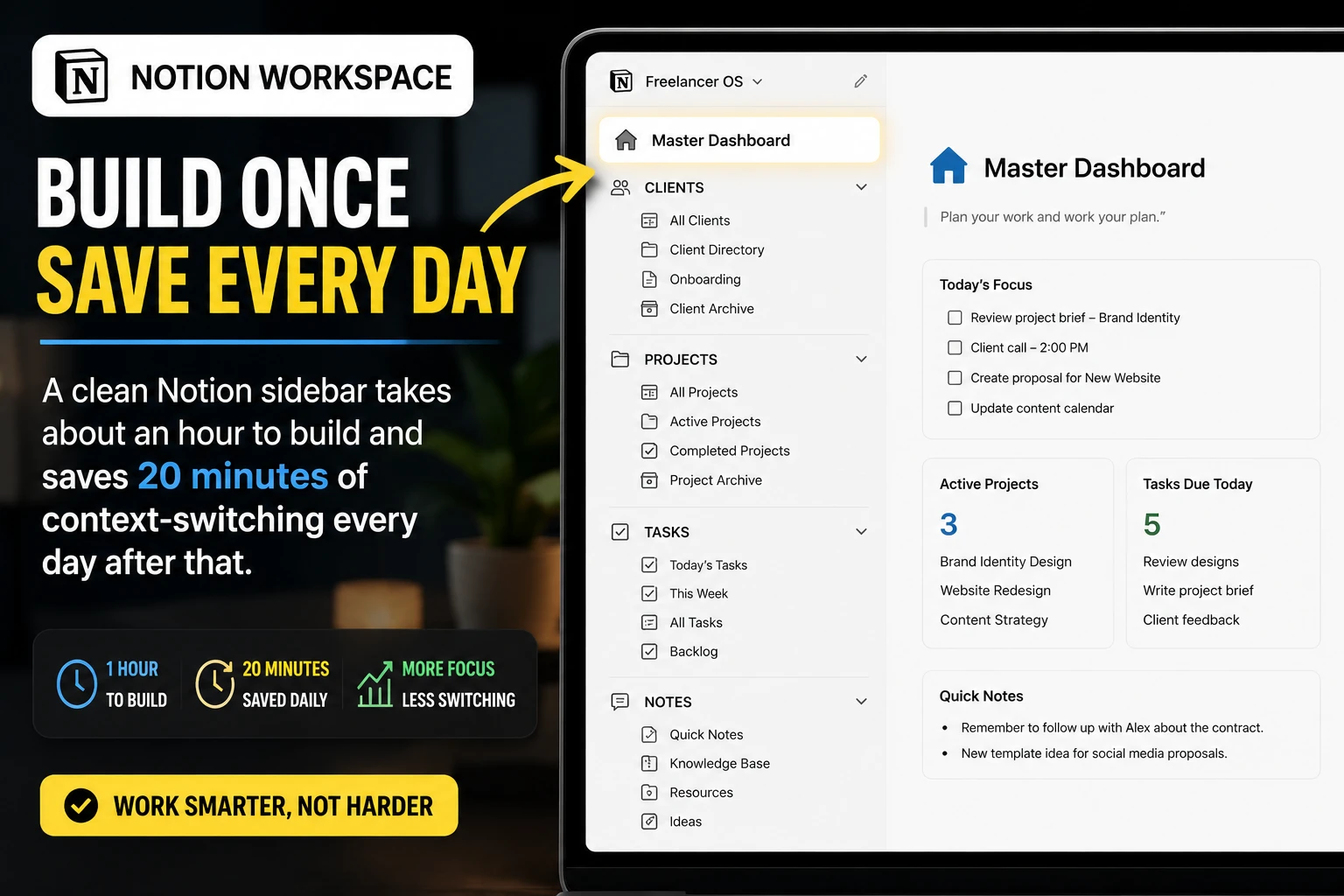
The setup rule that works: spend one hour maximum on initial setup. Build the three core databases. Build a dashboard. Stop. Use it for two weeks with whatever you built. Then spend 30 minutes improving the specific parts that actually caused friction during those two weeks.
A workspace that is 70% optimized and actually used beats a theoretically perfect workspace that you're still building.
Practical Notion Setups by Use Case
- Freelancers: Clients database linked to Projects database linked to Tasks database. Dashboard showing active projects and today's tasks. Invoice tracker as a simple table inside each client page.
- Students: Semester dashboard with a database for each course. Each course page has lecture notes, assignments (with due dates), and reading list. One global task database filtered by course.
- Remote teams: Shared project database with assigned owners. Meeting notes database. Team wiki for processes and reference material. Personal pages nested inside the team workspace.
For a full breakdown of Notion's pricing and whether the Plus plan is worth it for your situation, see our Notion review for 2026.
Common Mistakes to Avoid
- Building databases you don't use. Every database requires maintenance. If you build a reading list database but never add to it, it is clutter. Start with the databases that correspond to daily activities.
- Over-tagging and over-categorizing. Adding 15 properties to every database page feels thorough. In practice, you'll stop filling them in after day three. Keep properties to the ones you actually filter or sort by.
- Not using views. A database with only one view is half-used. The same data looks different in table, board, calendar, and gallery views. Spend 10 minutes creating the views you'll actually switch between.
- Using Notion for everything immediately. Recipe storage, travel planning, book notes, workout logs — Notion can hold all of it. That does not mean you should start there. Productivity gains come from replacing the tools you use most, not from building the most comprehensive personal OS on day one.
FAQ
- Is Notion free for productivity use?
Yes. Notion's free plan includes unlimited pages and blocks for individual users, access to all core features including databases and templates, and a trial of Notion AI. The free plan is genuinely usable for most individual productivity setups — not a crippled trial. - How long does it take to set up Notion for productivity?
A functional setup — dashboard, three core databases, basic templates — takes about one to two hours. Most users find the workspace improves significantly in the second and third week as they adjust based on what actually gets used. - What is the best Notion template for productivity?
The templates that stick are ones you build yourself for your specific workflow. Downloaded templates from the Notion marketplace give you a structural starting point, but expect to spend 30 to 60 minutes customizing any template before it genuinely fits how you work. - Is Notion better than Todoist for task management?
Todoist is faster for pure task management — less setup, simpler interface, better mobile experience for quick capture. Notion is better when your tasks need context: linked documents, project notes, client information, meeting summaries. - Does Notion work offline?
Partially. You can view recently opened pages without an internet connection, but editing and syncing require connectivity. If you work regularly in areas without reliable internet, this is a real limitation worth factoring into your tool decision. - How does Notion compare to other productivity tools?
For a direct comparison against the main alternatives, see our Notion vs ClickUp comparison and our Notion vs Obsidian breakdown for students — both cover specific use cases where one tool genuinely outperforms the other.
This guide reflects Notion's features as of June 2026. Notion ships updates regularly — we update this article when meaningful changes affect the workflows described above.
How are you using Notion for productivity? Share your setup in the comments — the most interesting ones might make it into a follow-up guide.
✅ Bottom Line
Notion is one of the most flexible productivity tools available in 2026. It replaces multiple apps by connecting your tasks, projects, notes, and client info in one relational workspace. The learning curve is real, but the payoff — a system that actually reflects how your work connects — makes it worth the initial setup time.
📬 Get the Latest Reviews in Your Inbox
Once a week — AI tools, SaaS & gadget reviews delivered straight to your email.