How to Use Notion for Freelance Clients (2026 Guide)

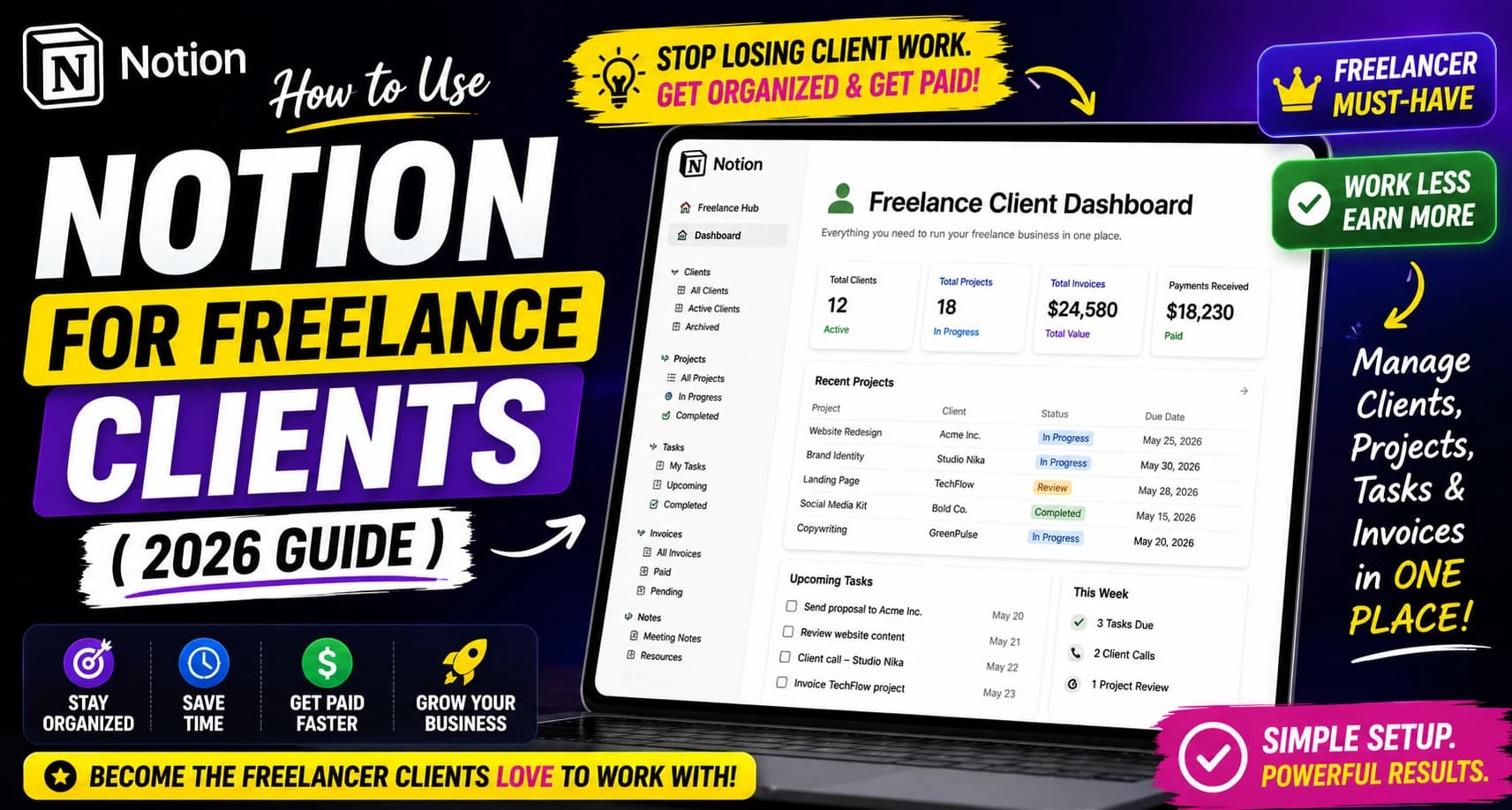
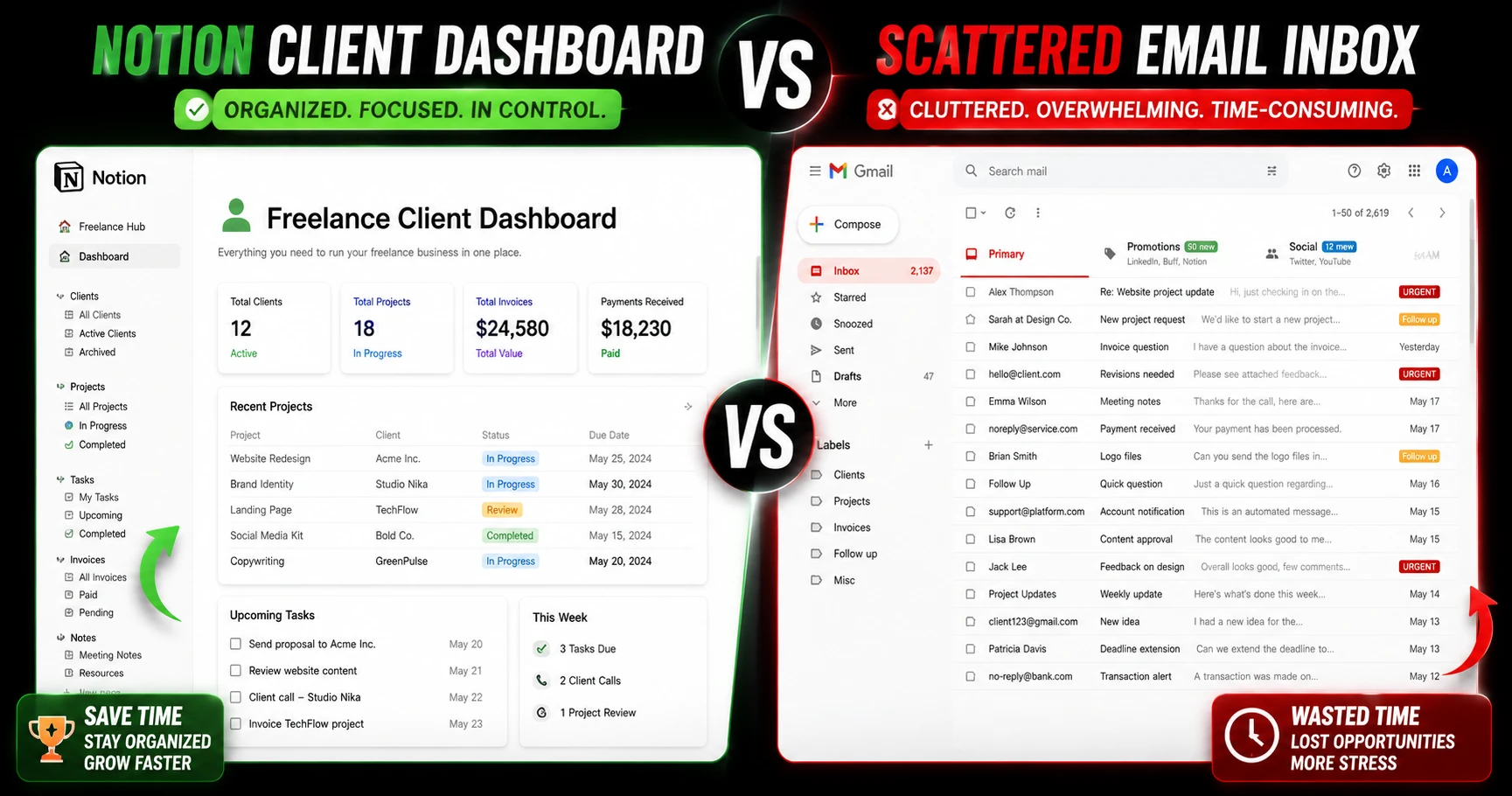
I'll be honest — I wasted almost eight months juggling three different tools before I finally moved everything into Notion. I had ClickUp for tasks, Google Sheets for invoices, and a notes app for client calls. It worked, technically. But every Monday morning felt like archaeology — digging through tabs trying to remember where I left something.
Then I rebuilt everything in Notion. That was six months ago. I haven't touched ClickUp since.
This isn't a "Notion is perfect" post. It's not. But for freelancers managing 3–10 clients at a time, it's genuinely the most flexible system I've found — and I've tried most of them.
Here's exactly how I set it up, and how you can copy it today.
The Core Reason Notion Works for Client Work
Most productivity tools are built for teams — not solo freelancers. They have approval flows, role permissions, and dashboards you'll never use. Notion is different because it's essentially a blank canvas. You build what you need, nothing more.
What makes it work for client management specifically:
- One database can hold clients, projects, tasks, and deliverables — all linked together
- You can create a shareable client portal with one click, without buying another tool
- It works for retainer clients, one-off projects, and everything in between
- The free plan is genuinely enough to start
The downside? Setup takes time. Notion doesn't hold your hand. If you want something plug-and-play, it's going to feel slow at first. But once your system is built, it practically runs itself.
Setting Up Your Client Database
This is where most people get it wrong — they create a simple list and call it done. The real power comes from linked databases.
Here's the structure I use:
Clients Database — one row per client
Fields: Client Name, Contact Email, Retainer or One-off, Monthly Rate, Status (Active / Paused / Completed), Start Date, Slack/WhatsApp link
Projects Database — linked to Clients
Fields: Project Name, Client (linked), Status (Not Started / In Progress / Review / Done), Deadline, Deliverables, Notes
Invoices Database — linked to both
Fields: Invoice Number, Client, Amount, Date Sent, Status (Draft / Sent / Paid / Overdue)
Once these three are linked, you can open any client and see all their projects and invoices in one view. No switching tabs. No searching.
I had a client last month ask about an invoice from four months ago. I found it in about 8 seconds. That used to take me 10 minutes of email searching.
Creating a Client Portal That Looks Professional
This is the feature most freelancers don't know about — and it's completely free.
Notion lets you share any page as a public link. You can create a dedicated portal for each client that shows:
- Current project status and progress
- Shared files and deliverables
- Upcoming deadlines
- A place for feedback and revision requests
The client doesn't need a Notion account to view it. They just click the link.
My setup: I duplicate a template for each new client, fill in the project details, and send them the link in my onboarding email. It takes about 12 minutes per client. Clients consistently say it looks more professional than what they expected from a solo freelancer.
One thing to be careful about — set the page to View only unless you actually want the client to be able to edit. I made that mistake once. A well-meaning client "reorganized" my task list. Not ideal.
Managing Deadlines Without Missing Them
Notion's calendar view and timeline view are underrated for this.
I use a filtered view that shows only tasks due in the next 7 days, across all clients. Every morning I open that view first — not my email, not Slack. That view tells me exactly what needs to happen today.
For retainer clients, I set up a recurring task template. At the start of each month, I duplicate it and fill in the dates. Takes 5 minutes. Saves me from forgetting monthly deliverables.
The one limitation: Notion doesn't send deadline reminders by default. You'll need to use Notion's reminder feature (type /remind in any date field) or connect it to a calendar. I personally use the built-in reminder — it's basic but it works.
Invoice Tracking in Notion
I don't use Notion to generate invoices — I use Wave for that, which is free and handles the actual PDF creation. But I track every invoice in Notion.
My invoice database has a "Status" field with these options: Draft, Sent, Paid, Overdue. I filter it by "Overdue" every Friday. If something's been sitting in "Sent" for more than 14 days, I follow up.
This alone has improved my collections significantly. Before Notion, I'd sometimes forget to follow up on invoices. Now it's a weekly ritual that takes 5 minutes.
The Notion AI Feature — Is It Worth It?
Notion AI costs $10/month on top of your plan. For client work specifically, I find it useful in two situations: writing first drafts of client-facing updates, and summarizing long meeting notes into action items.
It's not magic. If you're already a decent writer, you might not need it. But if you spend a lot of time crafting client emails or update messages, it can cut that time in half.
I covered this in more detail in my breakdown of whether Notion AI is worth it for small teams — most of that applies to solo freelancers too.
What Notion Can't Do
Notion is not a replacement for everything. Here's where it falls short for client work:
- Time tracking — Notion has no built-in timer. You'll need Toggl or Clockify. I link my time entries to Notion manually at the end of each day — adds maybe 3 minutes to my routine.
- Client communication — Don't use Notion as a messaging tool. It's not built for it. Keep client communication in email or Slack, and just reference Notion for project details.
- Automated invoicing — You can track invoices, but you can't auto-generate or send them. Use Wave, FreshBooks, or even a Google Docs template for the actual invoice.
- Mobile experience — The Notion mobile app has improved a lot in 2026, but it's still not great for heavy database work. If you're mostly on mobile, this could frustrate you.
My Actual Weekly Workflow
Monday 8:30am — Open Notion. Check my "Due This Week" filtered view.
Monday 8:45am — Review each active client's project status. Update anything that changed over the weekend.
Monday 9:00am — Check invoice status. Follow up on anything overdue.
Monday 9:15am — Start actual work.
Friday 4:30pm — Update all project statuses. Add notes from any client calls that week. Check next week's deadlines.
That's it. About 30 minutes total per week on system maintenance. The rest of the time Notion just sits in the background, organized, waiting.
Getting Started: The Quickest Setup
If you want to start today without building from scratch:
- Create a free Notion account at notion.so
- Search "Freelance CRM" in the Notion template gallery — there are several free options
- Pick one, duplicate it to your workspace, and adapt it to your client list
- Spend one afternoon migrating your current client info into it
Don't try to build the perfect system on day one. Start with just the Clients database. Add the Projects database in week two. Add invoicing in week three. Incremental setup is much less overwhelming.
If you're still deciding whether Notion is the right tool at all, my full Notion review for 2026 covers the honest pros and cons after six months of daily use. And if you're comparing it with other tools, the Notion vs Obsidian breakdown is worth reading — they serve very different workflows.
For a broader productivity setup beyond client work, check out the guide on how to use Notion for productivity — it covers the personal side of the system.
Bottom Line
Notion won't run your freelance business for you. But it gives you a single place where everything lives — clients, projects, deadlines, invoices — and that alone removes a surprising amount of mental overhead.
I'm not switching away anytime soon. The setup investment paid off within the first two weeks.
Have questions about your specific setup? Drop them in the comments — I read every one.

Written by
Asif IqbalSenior Writer
Asif Iqbal is the Founder & CEO of Tech Vault AI, leading the team's hands-on testing of AI tools and SaaS products & Tech reviews. He's focused on cutting through marketing hype to help readers find what actually works.
How to Use Notion for Freelance Clients (2026 Guide) reviews
Loading reviews...
Questions & Answers
Loading questions...
📬 Get the Latest Reviews in Your Inbox
Once a week — AI tools, SaaS & gadget reviews delivered straight to your email.