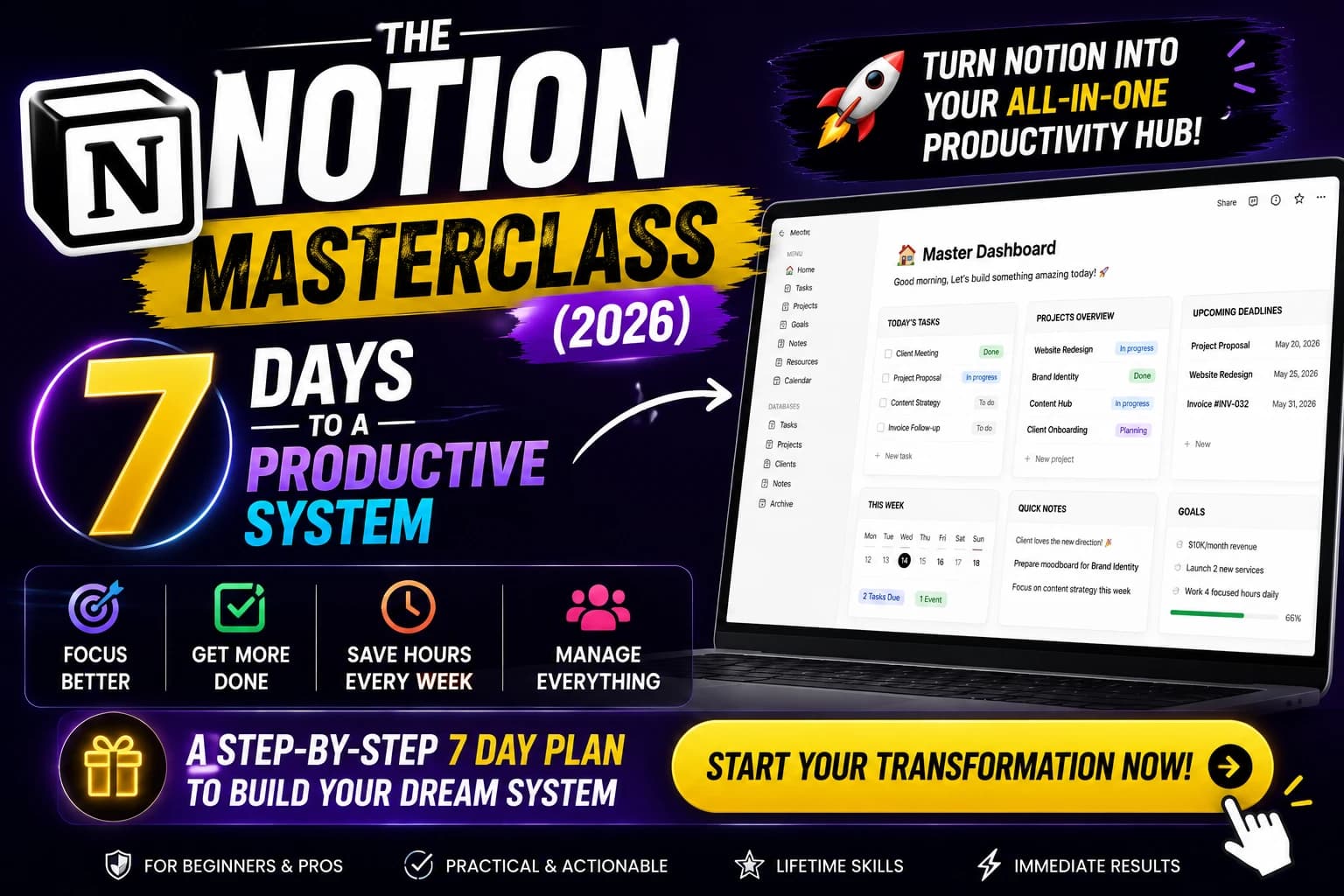
The Notion Masterclass (2026): 7 Days to a Productive System
The first time I opened Notion, I stared at a blank page for eleven minutes and then closed the tab.
Not because the interface was confusing. Because it was too open. No guardrails. No suggested starting point. Just a cursor blinking in an empty white space that could theoretically become anything — and therefore felt like it should become something perfect on the first try.
That paralysis is where most people quit. They open Notion, feel the pressure of infinite possibility, and go back to whatever combination of apps they were already using because at least those feel familiar.
I came back to Notion three weeks later with a different approach: I stopped trying to build the perfect system and started building the minimum useful one. Seven days later I had a workspace that replaced three apps. Three months later I had not opened those apps once.
This is the guide I wish existed on day one. It is not about the perfect Notion setup. It is about the one that works — and what I learned along the way that the official documentation will not tell you.
Before We Start: What Notion Actually Is
Notion is a unified workspace that combines notes, databases, task management, calendars, and wikis into one highly customizable platform. Think of it as Lego for productivity — you combine building blocks to create the exact structure you need.
That description is accurate but misses the practical point. The reason Notion is worth learning is not that it does everything. It is that the things it does are connected. Your project list and the documents inside each project live in the same place. Your client database and your meeting notes from that client are one click apart. In most productivity setups, those pieces live in separate apps that don't know about each other. Notion makes them a single thing.
Notion covers fundamentals like pages, blocks, databases, properties, and relations — as well as advanced views including Kanban, Gantt, Calendar, Table, and List for every use case.
Who this guide is for: Freelancers, students, and knowledge workers who have opened Notion at least once, felt overwhelmed, and want a structured path to actually using it.
Who should skip this: If you need a simple app for quick notes with zero setup, Notion will always feel like too much. Apple Notes or Bear will serve you better. No shame in that.
Day 1: Understand the Three Things That Matter
Most Notion tutorials start with every feature. This one starts with three.
Blocks
Everything in Notion is a block. Paragraph, heading, table, image, toggle, database — all blocks. Type / anywhere to open the block menu. Spend 10 minutes adding and deleting blocks on a blank page before you build anything permanent. The goal is to internalize that everything is modular and rearrangeable.
Pages
Pages are your canvases. A page can hold any blocks, including other pages. That nesting — pages inside pages — is how Notion creates hierarchy without folders. A client page can contain a project page which contains a task page which contains meeting notes. All one thing.
Databases
This is where Notion becomes different from every other notes app. A database is a collection of pages with consistent properties — status, date, person, priority, tags. The same database can be viewed as a table, a kanban board, a calendar, or a gallery. You build the data once; you look at it in whatever format is useful in the moment.
The moment databases clicked for me: I built a project database. Added a Status property with options: Not Started, In Progress, Review, Done. Switched to Board view. Suddenly I had a kanban board. Switched to Calendar view. Suddenly I had a deadline tracker. Same data, three different ways of seeing it. That flexibility is what replaces three apps.
Day 2: Build the Dashboard Before Everything Else
The most common Notion mistake is building individual pages before building a home base.
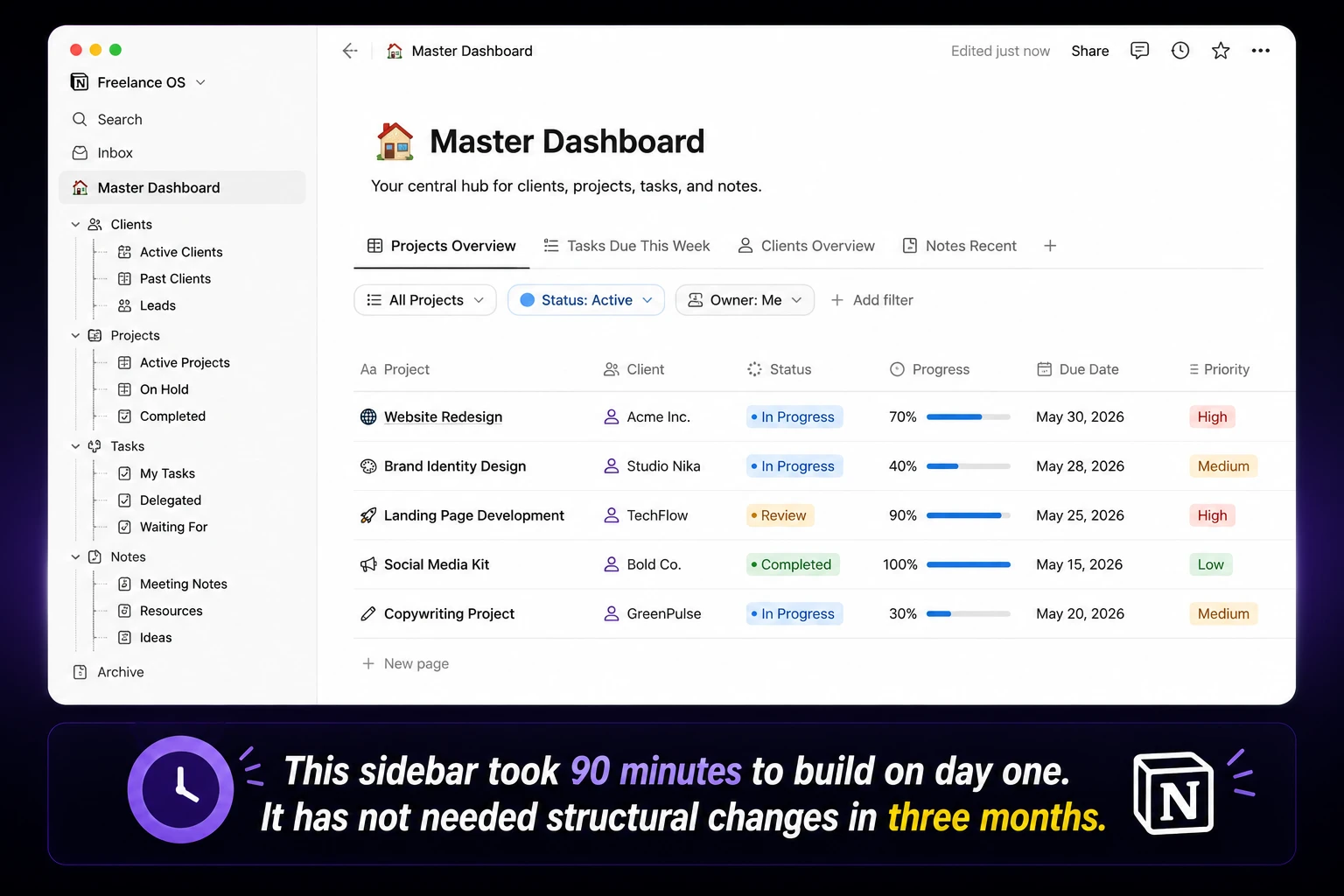
Your dashboard is the page you open every morning. It should answer three questions in under 30 seconds: What is due today? What is in progress? What did I miss?
Here is exactly what mine contains:
Today's tasks — a filtered view of my task database showing only items with a due date of today.
Active projects — a filtered view of my projects database showing only Status = In Progress.
Quick links — six text links to pages I open every day. Client folder, writing templates, invoices, weekly review.
Notion Calendar embed — the week ahead, pulled from my task database due dates.
Creating a personal dashboard gives you quick access to essential information — it is one of the most recommended starting points for Notion users.
Build the empty structure first. Populate it later. A dashboard with the right views and no data is more useful than a full page collection with no central navigation.
Day 3: Set Up Three Core Databases (Not Ten)
The trap is building databases for everything. Reading lists, recipe collections, travel plans, book notes — Notion can hold all of it. That does not mean you should start there.
Build these three first. Stop.
Tasks database
Properties: Name, Status (Not Started / In Progress / Done), Due Date, Priority (High / Medium / Low), Project (relation — more on this in a moment).
Views to create immediately: Board view by Status (your daily kanban), Table view filtered by Due Date = Today (your task list), Table view filtered by Priority = High (your weekly focus).
Projects database
Properties: Name, Status (Planning / Active / Review / Complete), Client (relation), Start Date, Deadline, Notes.
Views: Board by Status, Table filtered by Status = Active.
Notes database
Properties: Name, Type (Meeting Note / Resource / Idea / Template), Date, Related Project (relation).
Views: Table view by Type, Gallery view for browsing.
Three databases. That is the entire system for two weeks. After two weeks, you will know from friction exactly what to add. Do not try to predict it.
The Hidden Thing Nobody Tells You About Notion
Here is something that is not on Notion's feature page and took me three weeks to figure out.
The @ mention works inside database properties.
You can type @ in a text property and mention another page in your workspace. This means a task note can reference a client page without creating a formal database relation. A project can mention a relevant resource without rebuilding your database structure to accommodate it.
I use this constantly for one-off connections that do not warrant a formal relation — a task that references a specific section of a style guide, a project that mentions a relevant conversation thread. It is a lightweight link that keeps everything connected without requiring database architecture decisions.
Notion's own documentation buries this in an advanced section most users never reach.
Day 4: Relations and Rollups — The Part That Makes Everything Click
This is the most powerful feature in Notion and the one most users never set up because it feels technical.
Relations link two databases together. Connect your Tasks database to your Projects database. Now each task can be assigned to a project. Each project can show all its related tasks. Click a project, see every task inside it. Click a task, see which project it belongs to. This is what replaces a separate project management app.
Rollups let you calculate something from related entries. Add a Rollup property to your Projects database that counts tasks where Status = Done divided by total tasks. Now each project shows its completion percentage automatically. You did not calculate that number. Notion calculated it from your task data.
Setting this up takes about 20 minutes the first time. The result is a workspace where your project progress updates automatically as you complete tasks, without any manual reporting.
Database relations, rollups, and linked views are among Notion's advanced functionalities that unlock enhanced workflows and efficiency — but they require deliberate setup rather than arriving ready to use.
Day 5: Templates — Build Them for Your Actual Work
Notion's template gallery has thousands of options. Most of them are someone else's system optimized for someone else's workflow.
The templates worth your time are the ones you build for work that repeats in your specific context.
Building your own templates and scalable systems that grow with you is one of the core skills that separates Notion users who stick with it from those who abandon it.
Three templates I built that saved real time:
Client project template — New project pages open with a pre-built structure: Project Brief section, Deliverables checklist, Meeting Notes subpage, Invoice tracker table. Every new client project takes 2 minutes to set up instead of 15.
Weekly review template — Four sections: What got done (drag tasks from Done view), What carried over, Next week's top three, Any decisions made this week. Takes 10 minutes every Sunday. Has not changed in 12 weeks because the structure was right.
Meeting notes template — Date, attendees, agenda, decisions made, action items (with assigned person and due date). Action items auto-populate into the Tasks database through a relation. Notes from a meeting become tasks without re-entering data.
In a database, set a default template on a database so every new entry opens with the right structure pre-filled. Right-click any page in the template section, set as default. Done.
The Thing Notion Does That I Did Not Expect to Care About
I did not think I would use Notion Calendar. I already had Google Calendar. Adding another calendar interface seemed redundant.
Notion Calendar changed how I plan my days more than any other feature.
The ability to drag tasks from my database directly onto specific time slots — time-blocking — inside a calendar that also shows my Google Calendar appointments means I see everything in one view. The 11am client call is next to the task I blocked the hour before it to prepare for. The 3pm deadline sits on the day it is due alongside whatever else is competing for that afternoon.
Before Notion Calendar, I planned in Notion and scheduled in Google Calendar and the two were never actually connected. Now they are the same view.
Day 6: Notion AI — What It's Actually Good For
Notion AI is included in the Plus plan ($10/month). In 2026 it covers summarization, drafting, grammar, and basic task extraction.
Honest assessment: Notion AI is not good at writing original content. If you want to generate a blog post or marketing copy, Claude or ChatGPT will produce meaningfully better output. See our AI writing tools comparison if that matters to your workflow.
Notion AI is genuinely good at three specific things:
Summarizing meeting notes. Paste raw transcript or bullet notes, ask AI to extract decisions and action items. Thirty seconds to a clean summary instead of five minutes.
Filling in database properties. AI Tags analyzes content and suggests tags automatically. Imperfect but saves decision fatigue on routine tagging.
Drafting inside existing documents. Writing the second paragraph of something when you have the first. Continuing a structure you have already established. This is where Notion AI earns its place — not as a generation tool, but as a continuation tool inside documents you are already building.
In 2026, Notion AI includes enhanced summarization that tags tasks automatically and offers personalized onboarding, making it easier to use Notion for a variety of workflows.
Day 7: The Complexity Trap — Why Most Notion Setups Fail
This is the section most Notion guides skip because it is not about features.
The most common reason people abandon Notion is not that it is hard to learn. It is that they build the system instead of doing the work.
Notion is so flexible that spending an hour customizing a database view feels productive. It is not. That hour is indistinguishable from procrastination with a better interface.
The setup rule that works: one hour maximum on initial structure. Build the three databases. Build the dashboard. Stop. Use it for two weeks with whatever you built. Then spend 30 minutes fixing the specific friction points that appeared during those two weeks.
A workspace that is 70% optimized and actually used beats a theoretically perfect workspace that you are still refining.
Whether you are a beginner or looking to master advanced features, Notion rewards those who commit to using it consistently over those who optimize it endlessly before starting.
The second trap: importing everything. Recipes, travel plans, book notes, workout logs — Notion can hold all of it. Starting there means weeks of data entry and zero productivity improvement. Start with the work that currently causes the most friction. Replace that one thing. Let everything else follow when you have proven the system works.
Tools I Tried and Rejected Before Settling on Notion
This section is honest about what I considered.
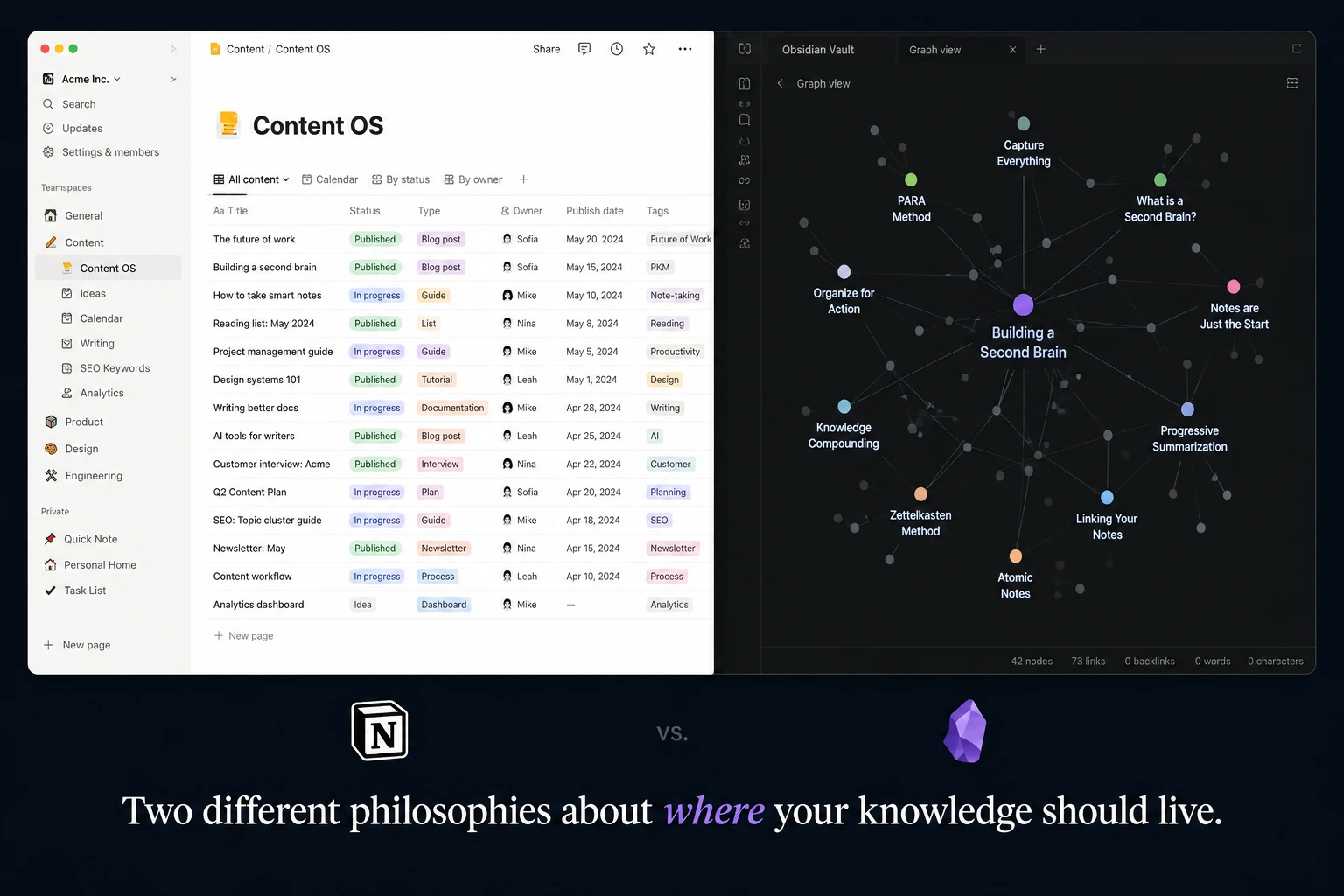
Obsidian — I used it for three months. The local-first storage and bidirectional linking are genuinely better than Notion for personal knowledge and long-form research. I switched back to Notion for one reason: collaboration. Sharing a workspace with a client in Obsidian requires workarounds. Sharing a Notion page takes 10 seconds. For the collaboration use case, Obsidian does not compete. For solo research and writing, it is arguably better. See our full Notion vs Obsidian comparison if that matters to your workflow.
ClickUp — Three months. The project management depth is better than Notion. Gantt charts, native time tracking, workload views. The documentation and note-taking quality is significantly worse. I write more than I manage. Notion fits the ratio of my actual work. If your work is primarily task execution rather than document creation, ClickUp is worth serious evaluation. See our Notion vs ClickUp breakdown.
Roam Research — Two weeks. The bidirectional linking concept is excellent. The interface is dated and the pricing ($15/month or $500 lifetime) is hard to justify when Obsidian does similar things free.
Coda — One month. The formula engine is more powerful than Notion's for complex database logic. The doc size limits on the free plan hit faster than Notion's. The community and template ecosystem is smaller. Good tool. Did not stick.
What Notion Cannot Do — The Honest List
Most Notion guides end before this part. This one does not.
No native time tracking. If you bill by the hour, you need an integration — Everhour, Toggl, or Harvest. Notion does not track time natively.
Slow on large workspaces. Search on a 500+ page workspace averages 2.1 seconds. Local-first tools like Obsidian return results in 0.3 seconds. If you are migrating a large existing knowledge base, prepare for this.
Limited offline access. Editing and syncing require internet. For anyone who works regularly without reliable connection, this is a real constraint.
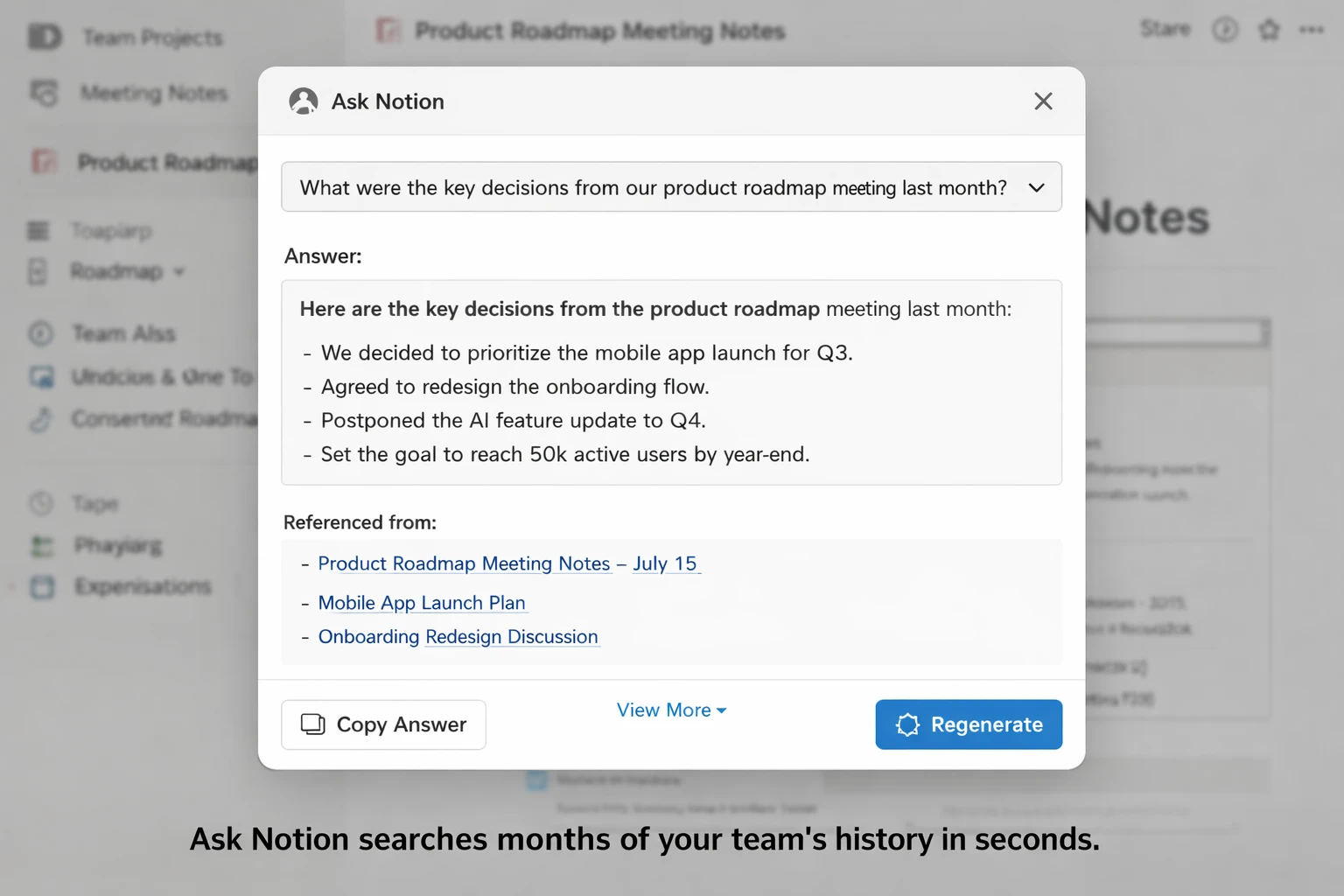
Full AI features require Business ($20/month). The Plus plan at $10/month includes basic AI. The AI Agents — automated workflows, advanced summarization, Ask Notion — require Business. For solo freelancers, basic AI on Plus is sufficient. For teams automating workflows, the Business plan is the one that delivers.
No Gantt chart natively. The Timeline view approximates it. For project managers who need true dependency mapping and resource allocation, ClickUp's Gantt is more capable.
The Actual Productivity Outcome After 90 Days
Before Notion: Trello, Google Docs, a spreadsheet, Apple Notes, Todoist. Five apps. Constant context switching.
After Notion: one workspace. Dashboard, projects, tasks, notes, client database — all connected.
Time saved per day: approximately 25 minutes of context switching and manual status updating. Across 90 days, that is 37 hours.
More valuable than the time: the reduction in decisions. Knowing where everything lives removes a cognitive load that is hard to quantify but immediately noticeable in its absence.
The one thing that still disappoints me: search quality. Full-text search across a large workspace still misses results occasionally, particularly in nested page content. It has improved in 2026 but is not reliable enough to be my primary way of finding things. I use the database filter system instead, which works consistently.
The Setup Checklist — Do This in Order
- Create a free Notion account at notion.so
- Spend 10 minutes adding and deleting blocks on a blank page — do not skip this
- Build your Tasks database with Status, Due Date, Priority properties
- Build your Projects database with Status, Client, Deadline properties
- Create a Relation property linking Tasks to Projects
- Build a Rollup property on Projects counting completed tasks
- Create your Dashboard page with filtered views for Today's Tasks and Active Projects
- Set up Notion Calendar and connect your Google Calendar
- Build your first template — start with meeting notes
- Use it for two weeks before changing anything
This guide reflects Notion as of June 2026.
What was your Notion turning point — the moment the tool finally clicked? Share it in the comments.
Frequently Asked Questions
What is Notion?▾
Notion is a unified workspace that combines notes, databases, task management, calendars, and wikis into one highly customizable platform. It's described as 'Lego for productivity' because you combine building blocks to create the exact structure you need.
Why is Notion considered a powerful productivity tool?▾
Notion's power comes from its ability to connect different pieces of information. Unlike separate apps, Notion allows your project list, documents, client database, and meeting notes to live in the same place and be one click apart, making them a single, integrated system.
Who is this Notion Masterclass guide designed for?▾
This guide is for freelancers, students, and knowledge workers who have opened Notion at least once, felt overwhelmed by its openness, and are looking for a structured path to actually using it effectively.
Who should skip this Notion guide or might find Notion unsuitable?▾
If you need a simple app for quick notes with zero setup, Notion will likely feel like too much. Simpler alternatives like Apple Notes or Bear would be more suitable for those specific needs.
What are the fundamental concepts in Notion?▾
Notion covers fundamentals such as pages, blocks, databases, properties, and relations. It also supports advanced views including Kanban, Gantt, Calendar, Table, and List for various use cases.
What is the main challenge people face when first using Notion?▾
Many people initially face 'paralysis' due to Notion's infinite possibilities and blank slate. They feel pressure to build a 'perfect' system from the start, which often leads to overwhelm and quitting before they even begin.
What is the core philosophy behind this 7-day Notion guide?▾
The guide's core philosophy is to stop trying to build the 'perfect' Notion system and instead focus on building the 'minimum useful one.' It aims to provide a practical, working setup rather than an exhaustive feature-by-feature tutorial.
📬 Get the Latest Reviews in Your Inbox
Once a week — AI tools, SaaS & gadget reviews delivered straight to your email.