ClickUp Review 2026: Is It the Best Project Management Tool?

Pros
- Everything View — see every project's tasks in one screen
- Instant switching between Kanban, Calendar, and Gantt views
- Deep customization with Custom Fields
- Built-in time tracking (no separate tool needed)
- ClickUp Brain AI assistant built into the workspace
- Generous free plan (unlimited members and tasks)
Cons
- Noticeable lag on large projects, even after recent performance updates
- Mobile app weaker than desktop — unreliable offline mode
- Some features locked behind higher-tier plans despite feeling standard
- Steep learning curve for the Workspace → Space → Folder → List hierarchy
Short answer: ClickUp is the most feature-complete project management tool you can get for the price, but it's not the fastest or the easiest to learn. If you want everything in one place and don't mind a learning curve, it's worth it. If you just want something simple that works instantly, look elsewhere.
I started using ClickUp with a business partner when we needed one place to handle client work, task tracking, and progress reporting instead of juggling three different apps. That single decision — trying to replace Notion, Trello, and a separate time tracker with one tool — is really what this review is built around.
For context on why so many teams even consider it in the first place: ClickUp holds a 4.7 out of 5 rating on G2 across more than 10,000 reviews, which is high for a tool this complex. That number is real, but it also averages out a lot of very different use cases — mine is one specific, honest data point underneath that average, not a replacement for it.
The First Few Days Are Confusing (And That's Normal)
Nobody tells you this before you sign up: ClickUp's hierarchy takes real effort to understand. Workspace, then Space, then Folder, then List, then Task — and until it clicks, you'll keep creating things in the wrong place. I did this myself in the first week, dropping client folders inside the wrong Space and having to reorganize everything.
On top of the hierarchy, the sheer number of features is overwhelming on day one. Custom fields, multiple view types, automations, dashboards — the settings menu alone can make a new user freeze. And figuring out which view (List? Board? Dashboard?) actually fits your workflow takes a few days of trial and error, not a few minutes.
This isn't a dealbreaker, but if you're expecting a tool that feels intuitive from the first login, ClickUp is not that tool.
The Moments That Actually Made Me Say "Wow"
Once the setup friction passes, a few features stand out enough that I still bring them up when people ask why I stuck with ClickUp:
- Everything View — seeing every task across every project in the entire account in a single screen, with no extra clicks. For anyone managing multiple clients, this alone replaces a spreadsheet.
- Instant view switching — the same task list becomes a Kanban board, a calendar, or a Gantt chart with one click, no re-entering data.
- Custom Fields — adding a dropdown, a progress bar, or a text field exactly where you need it, without waiting for the platform to "add support" for it later.
These are the features that separate ClickUp from a basic to-do app. They're also the reason it's genuinely hard to go back to something simpler once you're used to them.
What Actually Disappointed Me
Here's the part most reviews gloss over: ClickUp still lags for me.
ClickUp claims recent versions have largely fixed the speed issues it was known for, but in my day-to-day use with a real project — not a demo account with five tasks — the lag is still there. Once a project has a few hundred tasks in it, loading animations show up more often than they should, and switching between heavy views noticeably slows things down. For a tool built to save time, watching a loading spinner mid-task is exactly the friction you don't want, "fixed" or not.
The mobile app makes this worse. It's noticeably behind the desktop version — offline mode is unreliable, and the interface tries to cram desktop-level complexity onto a small screen, which just doesn't work well. If you need to update tasks on the go, be ready for a rougher experience than the desktop app gives you.
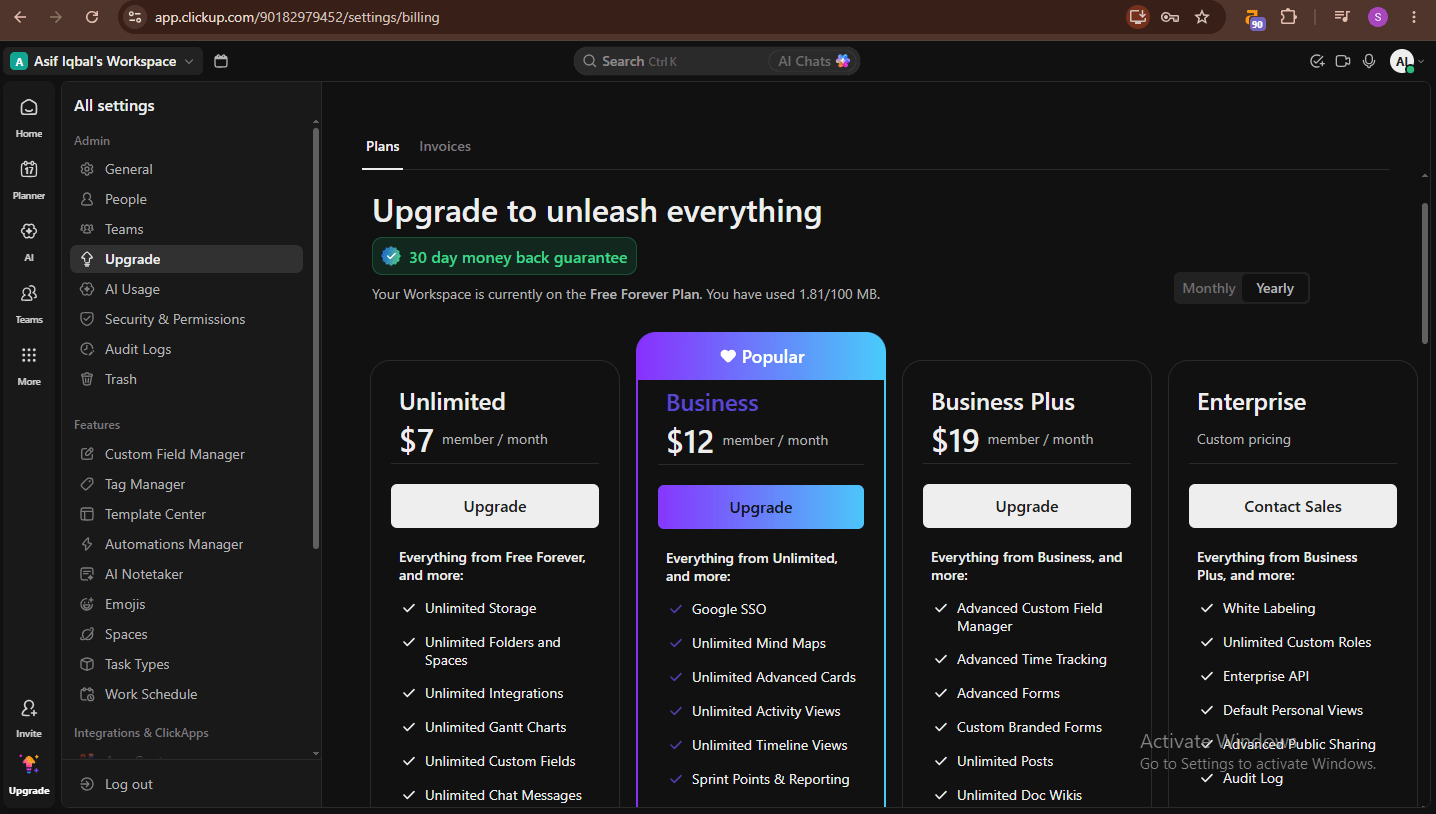
Then there's the pricing structure. The Free Forever plan is genuinely generous — unlimited members and tasks — and the first paid tier starts at $7 per user, per month, which undercuts most direct competitors. But several features that feel like they should be standard at that price — advanced custom fields, custom widgets, some dashboard options — sit behind higher-tier plans. You don't always realize this until you're mid-setup and hit a wall, which is a frustrating way to find out your plan isn't enough.
What About ClickUp Brain (The AI Assistant)?
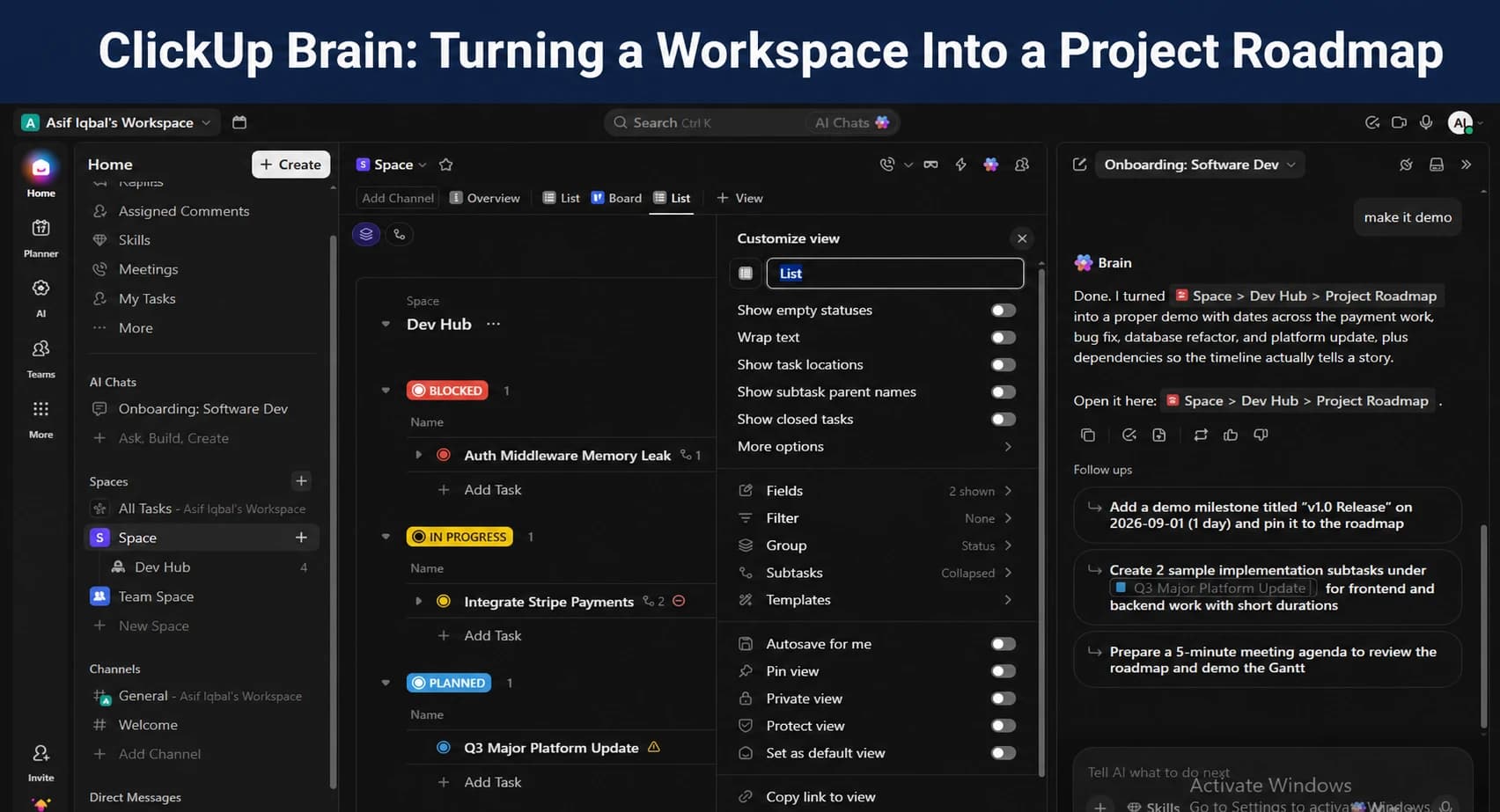
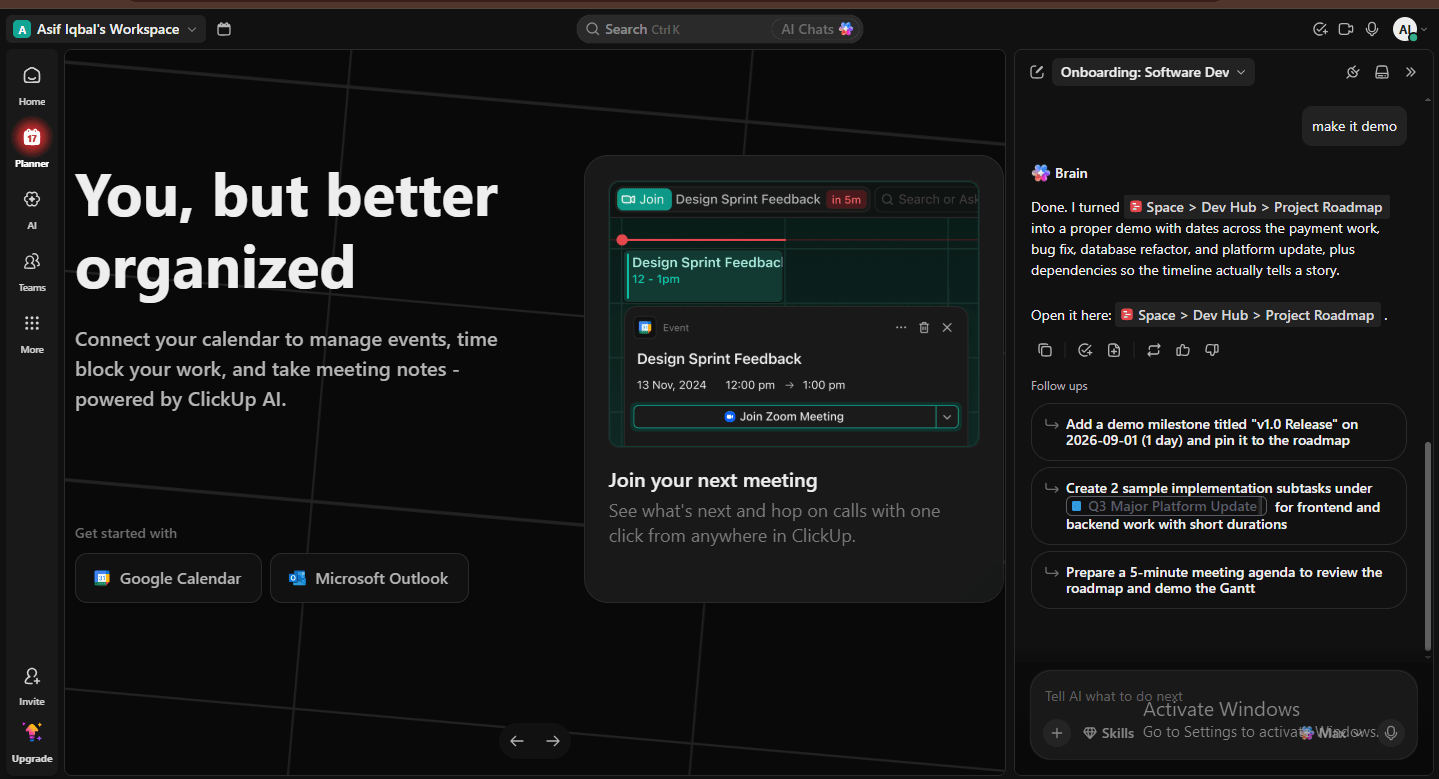
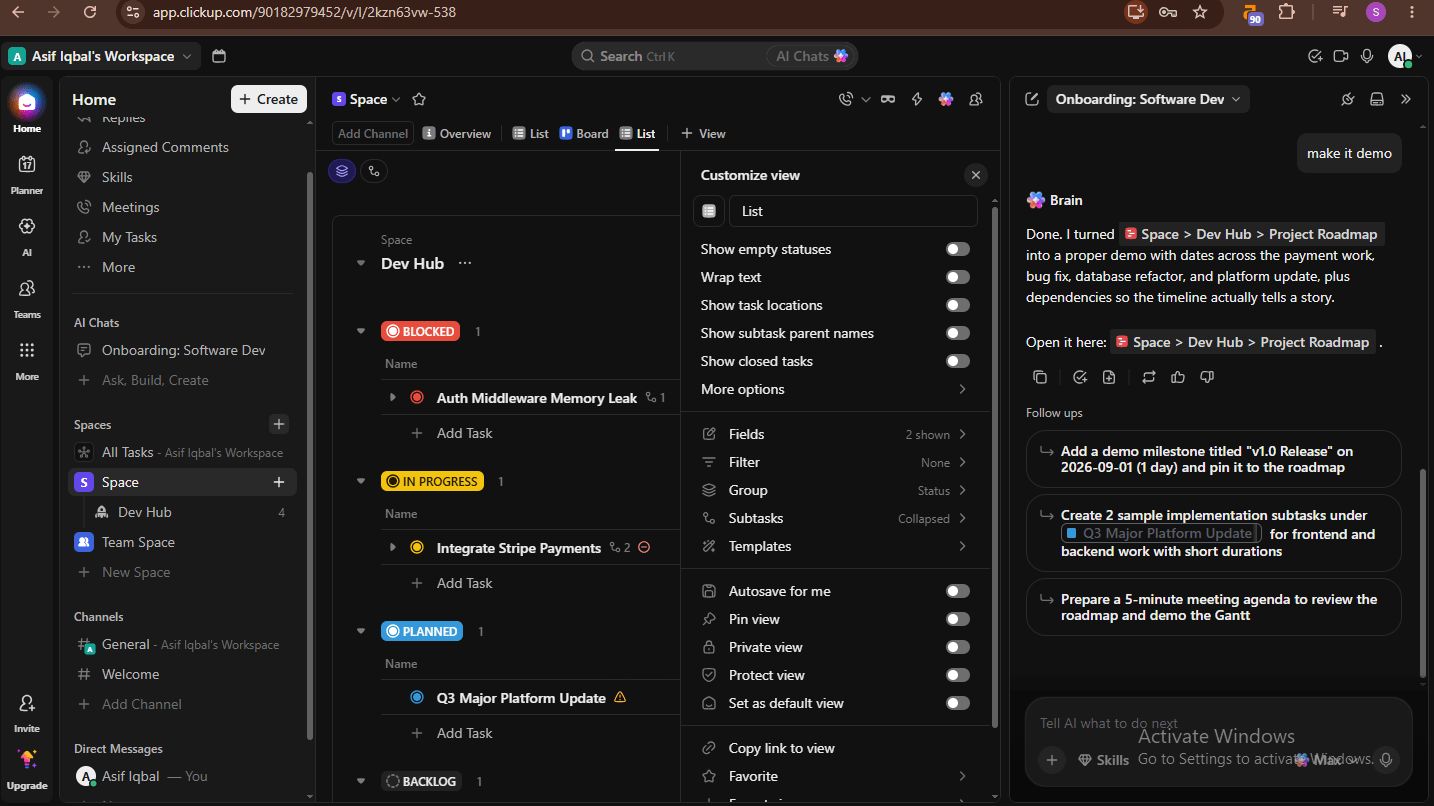
The biggest addition to ClickUp in 2026 is ClickUp Brain, an AI assistant built into the workspace rather than bolted on as a separate tab. It can summarize long task threads, draft updates from a handful of bullet points, and — one genuinely useful addition — you can send its AI Notetaker to any call just by sharing a link, which is handy for unplanned client calls where nobody remembers to hit record.
It's a real feature, not a marketing checkbox, but it doesn't change the core trade-off of this review: the platform is still heavy, and AI features layered on top of an already feature-dense tool add more surface area, not less. If your main reason for choosing ClickUp is the AI assistant specifically, it's worth trying the free plan first to see if it fits how you actually work before upgrading for it.
Tools I Tried But Rejected
Before settling on ClickUp, three other tools were seriously considered — and each was dropped for a specific reason, not just personal preference.
Notion is genuinely excellent for documentation and note-taking, and if that's your main need, it's worth checking whether the free plan covers you before paying for anything. But for project management specifically, setting up recurring tasks is unnecessarily complicated, and it lacks built-in time tracking and the kind of task automation ClickUp handles natively. For a deeper side-by-side aimed specifically at freelancers choosing between the two, there's a full Notion vs ClickUp comparison for freelancers worth reading before deciding.
Asana is clean and genuinely easy to learn — probably the easiest of the three. But the free and basic plans restrict custom fields and multiple views like Gantt charts, and the paid tier gets expensive fast for a small team. If your team is small and budget matters, that cost adds up quickly.
Trello is still the best pure Kanban tool out there for small, simple projects. The problem shows up once a project grows — Trello has no real answer for sub-task management or tracking work across a larger team without the board turning into a mess of cards nobody can follow anymore.
How ClickUp Actually Gets Used Day to Day
This isn't a tool you open once a week. Regular users end up treating it like a digital headquarters:
Daily pattern: Start the morning by checking the Home or "Me" view for the day's task list, run the built-in time tracker while working, and update task status before closing out the day.
Weekly pattern: At the start or end of the week, dashboards get reviewed ahead of team meetings, sprints get planned, progress reports get checked, and client-facing summaries get pulled together.
Once this rhythm sets in, ClickUp stops feeling like a task list and starts feeling like the actual control panel for the work.
ClickUp vs Notion vs Asana vs Trello
| Tool | Best For | Weak Point |
|---|---|---|
| ClickUp | All-in-one project + client management | Speed, learning curve |
| Notion | Docs, notes, knowledge base | Weak recurring tasks, no native time tracking |
| Asana | Clean UI, fast mobile app | Custom fields/views locked behind paid plans |
| Trello | Simple Kanban, small projects | Breaks down on large projects, weak sub-tasks |
A Contrarian Take: More Features Isn't Automatically Better
Most reviews list ClickUp's feature count as a pure win. Honestly, it's a trade-off. Every feature you don't use is still sitting in the interface, adding to the clutter and the load time. A freelancer managing three clients doesn't need half of what ClickUp ships with — and paying that complexity tax every day for features you never touch is a real cost, not a bonus.
A Fact Most Comparison Pages Skip
The paywall isn't just about the number of features you get — it's about which specific features get locked. Custom widgets and some dashboard configurations sit behind higher plans in a way that isn't obvious from the pricing page alone. Budget for this before you commit a team to the free or basic tier, because migrating a live project halfway through a plan upgrade is a headache you can avoid by checking first.
If ClickUp Isn't For You: 3 Real Alternatives
- Monday.com — noticeably faster and more stable than ClickUp, with a cleaner interface that's genuinely easier to learn.
- Asana — a much better mobile app and faster day-to-day performance, especially for larger teams that need smooth collaboration.
- Notion — the better pick for documentation, notes, and knowledge bases; lighter and easier to customize than ClickUp.
Between paid Notion and paid ClickUp specifically: go with Notion Paid if your core work is content, knowledge management, or an internal wiki — it organizes text and documents more efficiently for the price. Go with ClickUp Paid if your core work is project tracking, complex deadlines, team automation, and built-in time tracking — on pure project management power, ClickUp's paid tier is stronger than Notion's.
Who Should Actually Use ClickUp
Use it if you are:
- A mid-to-large team that needs to track work across multiple departments in one place
- A power user who wants to build your workflow exactly the way you think, not the way the app assumes
- A freelancer juggling multiple clients who wants time tracking, client dashboards, and project management in a single tool
Skip it if you are:
- A solo user who just needs a basic to-do list or notes app — Todoist or Google Keep will serve you better with far less setup
- New to software tools in general — the learning curve here is steep, and you'll likely feel lost before you feel productive
- On a slow or unreliable internet connection — the loading lag will frustrate you daily
If none of ClickUp's heavier features apply to you, it's also worth browsing lighter, more specific tools in the AI tools directory before committing to something this feature-heavy — including some free AI tools worth checking for simpler task tracking if your needs are closer to personal or student-level task management.
Frequently Asked Questions
Is ClickUp actually free to use?
Is ClickUp better than Notion for project management?
Why is ClickUp so slow?
Is ClickUp good for freelancers?
Bottom Line
Feature-complete and genuinely powerful, but slower and harder to learn than most direct competitors. Worth it if you'll actually use the depth; overkill if you just need a simple task list.

Written by
Asif IqbalSenior Writer
Asif Iqbal is the Founder & CEO of Tech Vault AI, leading the team's hands-on testing of AI tools and SaaS products & Tech reviews. He's focused on cutting through marketing hype to help readers find what actually works.
📬 Get the Latest Reviews in Your Inbox
Once a week — AI tools, SaaS & gadget reviews delivered straight to your email.