Switching to the Z Fold 8: The Data Transfer Reality

Pros
- Contacts/photos/Notes transfer flawlessly via Smart Switch · Cable option is 3–4x faster for heavy data · Wide 7.6" display genuinely useful for multitasking
Cons
- WhatsApp/Telegram chat history doesn't transfer automatically · Phones run warm during wireless transfer · Every app needs manual re-login after switch
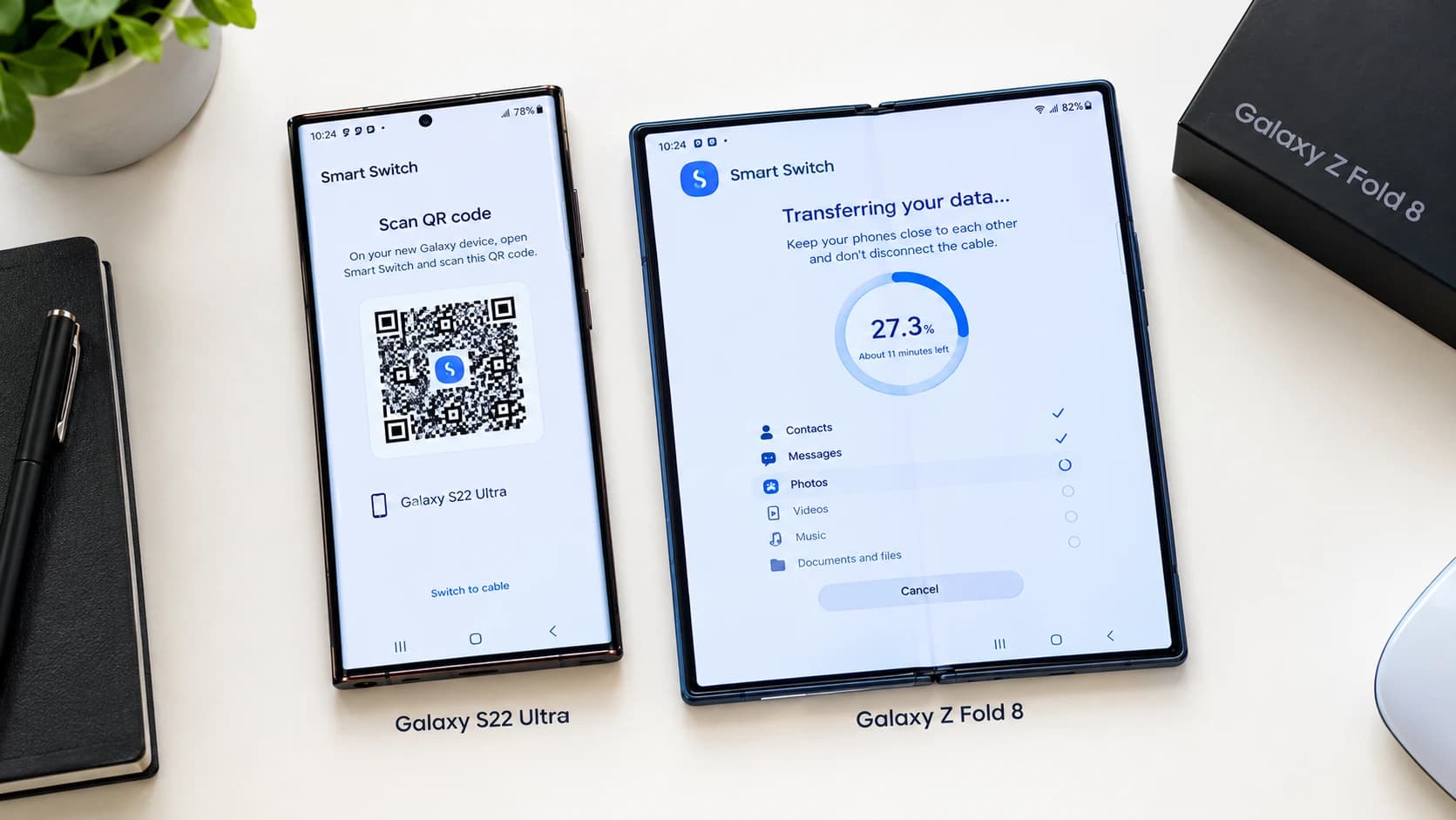
Every Samsung page and every "how to" guide makes it sound like you scan a QR code, walk away, and come back to a perfectly cloned phone. We moved an 80GB Galaxy S22 Ultra to a Z Fold 8 over Wi-Fi to see if that's actually true. Short version: Smart Switch nails contacts, photos, and Samsung Notes without a hiccup — but WhatsApp and Telegram are a different story, and nobody warns you about that part until it's already too late to fix easily.
Here's what actually happened, not what the box says should happen.
How do I transfer everything from my old Samsung to my new Samsung?
Same-brand moves are the easy case, and ours was about as standard as it gets — S22 Ultra to Z Fold 8, roughly 80GB, all over Wi-Fi. Total time: 45 to 50 minutes. Keep both phones close together and charge them past 20% first, because the screens stay lit the whole time and that alone drains a surprising amount of battery.
What the guides don't mention: both phones got warm enough that we set them down instead of holding them by the halfway mark. And near the end, the progress bar parked itself at 99% for a solid 15–20 minutes with contacts and messages showing zero movement. We genuinely reached for the power button to force-restart it, assuming it had frozen. It hadn't. It was just slow. If you're mid-transfer right now watching that same stall, close this tab and go make tea — it finishes on its own.
If you're still weighing a foldable against a flat flagship before you even get to this step, our Galaxy Z Fold 8 vs iPhone Fold 2026 comparison covers which one actually holds up for heavy multitasking.
Can the Samsung Smart Switch transfer everything?
It says yes. It isn't quite telling the truth.
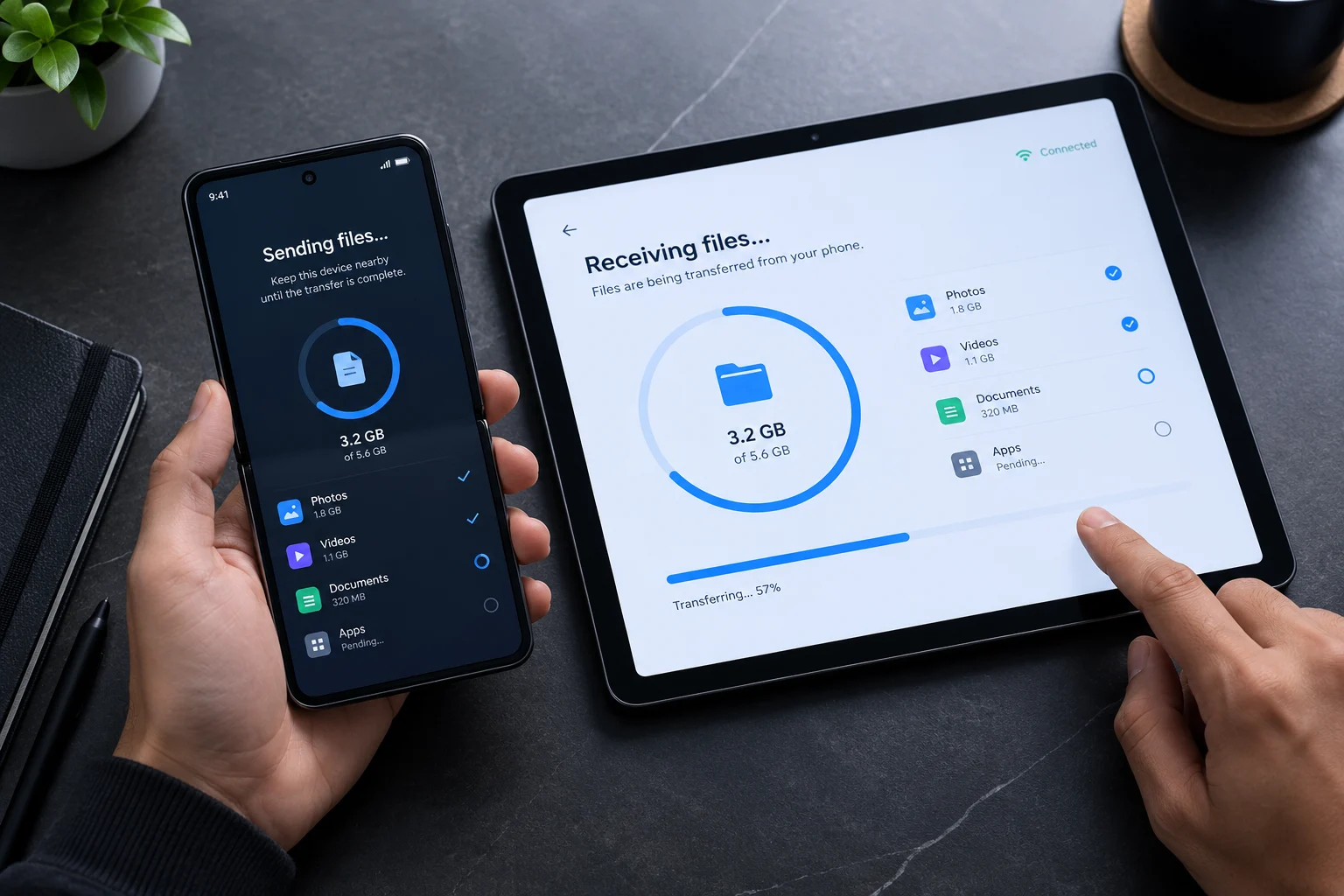
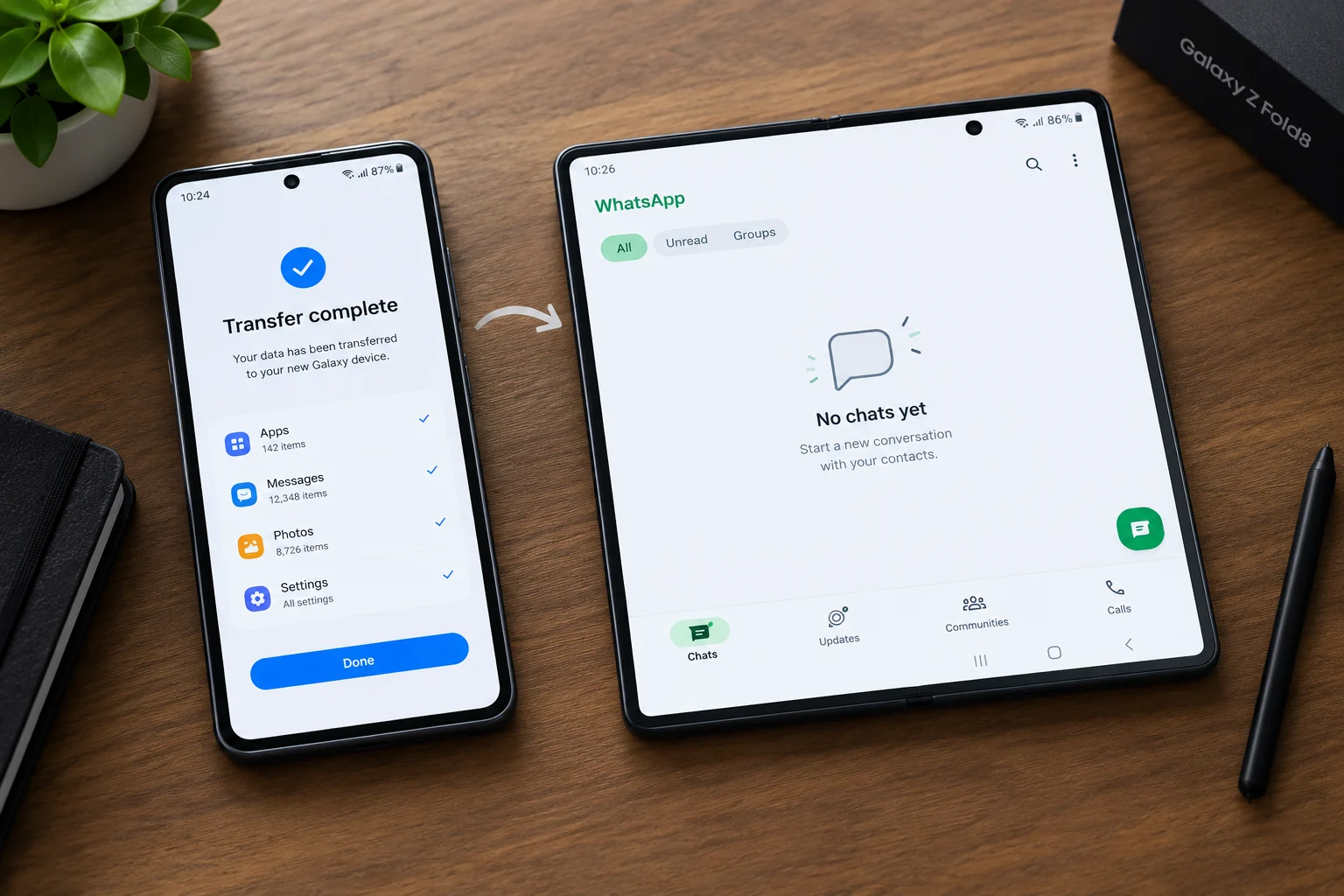
At the end of the process, Smart Switch shows "All Data Transferred," and technically it's not lying — contacts, call logs, photos, videos, calendar, and Samsung's own apps really do move over cleanly. The problem is what that message quietly leaves out.
We opened WhatsApp on the new Z Fold 8 expecting years of conversations to be sitting there. The chat list was empty. Completely. Turns out Smart Switch can't reach inside WhatsApp's or Telegram's encrypted local storage — not a glitch, just how both apps are built to keep chats locked to the device or the cloud, not to a generic transfer tool. WhatsApp needs its own backup pulled from Google Drive (iCloud if you're coming from an iPhone) and restored by hand inside the app with an OTP. Telegram's regular chats come back fine once you log in, but Secret Chats don't — those are tied permanently to the phone they were created on, and there's no backup path around that one. They're just gone.
So read "All Data Transferred" as "everything that's allowed to transfer, transferred." Not everything did.
Do I put my SIM card in a new Samsung before transferring data?
You don't need the SIM card in for Smart Switch to work — the transfer itself runs over Wi-Fi or cable and doesn't touch your SIM. But it's worth moving your SIM (or activating your eSIM) on the new phone before you start, simply so you can receive OTP codes during setup — you'll need at least one for WhatsApp restore and likely more for banking apps and 2FA re-registration afterward.
How do I transfer data from my old phone to my new Samsung phone?
There are really three options here, and the right one has less to do with brand loyalty than with how much data you're carrying and how much of it lives inside chat apps.
If your old phone is also a Samsung or a fairly standard Android device and you're under roughly 50GB, just use wireless Smart Switch. Scan the code, let it run in the background, don't panic at the 99% stall — this is the path we tested, and for contacts, messages, and everyday photos it just works.
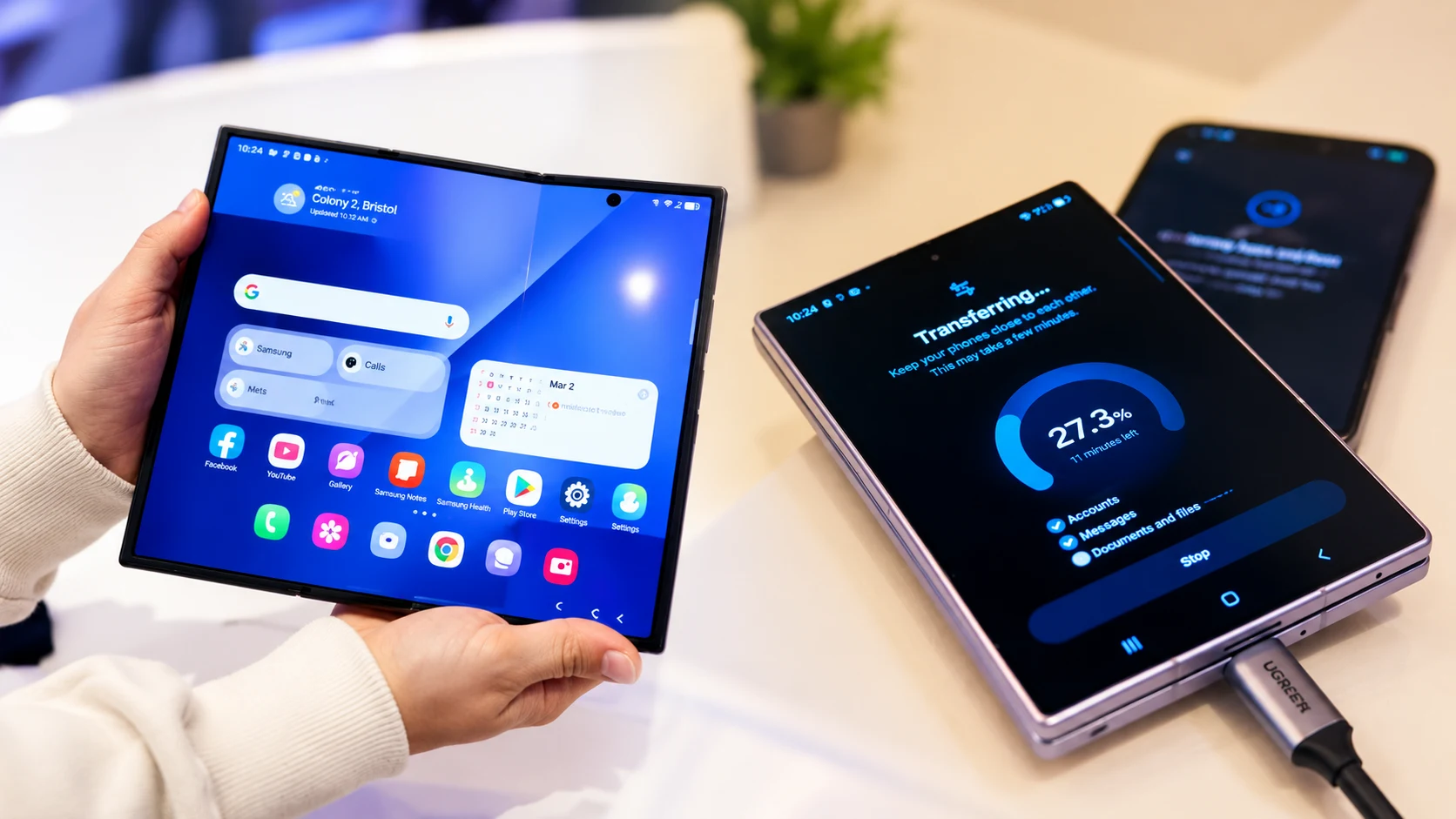
Coming from an iPhone, or sitting on 100GB+ of mostly 4K video? Skip Wi-Fi and go straight to the cable. It runs 3–4x faster, there's no mid-transfer drop risk, and it converts iPhone Live Photos more cleanly than the wireless path ever does. The extra five minutes plugging in a cable is nothing compared to redoing a stalled 100GB Wi-Fi transfer.
And regardless of which of those two you pick, manual backup isn't optional for one specific slice of your data — it's mandatory. WhatsApp, Telegram, Signal history, crypto wallets like Trust Wallet or MetaMask, anything sitting behind Google Authenticator: none of it is touched by Smart Switch, on either method. Back WhatsApp up to Google Drive from inside its own settings before you start. Pull your authenticator's "Export Accounts" QR code and keep it somewhere safe. Do this first, not after you've already set up the new phone and gone looking for your chats.
| Method | Best for | Speed | Data-loss risk |
|---|---|---|---|
| Wireless (Smart Switch) | Samsung-to-Samsung, under 50GB | ~45–50 min for 80GB | Low for standard data, high for in-app chats |
| Cable | iPhone switchers, 100GB+, heavy video | 3–4x faster than Wi-Fi | Lowest overall |
| Manual backup | WhatsApp/Telegram/Signal, crypto wallets, 2FA | Slowest, but the only option that works | Zero, if done first |
If your old phone was an iPhone, our Samsung S26 Ultra vs iPhone 17 Pro Max comparison has more on what else changes when you leave iOS behind, beyond just the data transfer.
Can I transfer everything from old phone to new phone?
Not in one pass, no. Standard data — contacts, call logs, calendar, photos, videos, Samsung Notes — comes across close to perfectly through Smart Switch. Anything locked behind an app's own encryption, chat apps especially, needs its own separate backup-and-restore step that you handle yourself.
And even for the stuff that did transfer successfully, be ready to log back into every single app afterward — banking, brokerage, cloud storage, all of it, one at a time. That's not Smart Switch cutting corners; it's just how app-level security works on a new device. Set aside an extra hour after the "official" transfer is done, mostly for re-entering passwords and resetting 2FA on anything finance-related.
How to transfer data without Smart Switch?
If you'd rather skip Smart Switch entirely — or you're dealing with a device it doesn't support well — a USB flash drive or external storage works as a manual alternative. Back up your old phone's data to the storage device, then connect it to the Z Fold 8 and restore from there. A USB-OTG adapter may be required depending on your drive. This is slower and more hands-on than either Smart Switch method, but it's a reasonable fallback if Wi-Fi transfer keeps stalling or a cable connection isn't being recognized.
Speaking of the Z Fold 8's port and hardware quirks, our hands-on camera review of the Galaxy Z Fold 8 covers more of what changed physically on this generation, separate from the transfer process.
Who should skip Smart Switch and go straight to manual backup
If chat history in WhatsApp, Telegram, or Signal is something you'd genuinely be upset to lose, don't even start with Smart Switch first. Back up those apps individually before you touch the transfer tool at all — trying to fix it after the fact, once your new phone is already set up, is more painful than doing it in the right order the first time. The same goes for anyone running multiple crypto wallets or several 2FA-protected accounts: export those first, transfer everything else second.
Verdict: what we'd actually tell a friend
For a Samsung-to-Samsung move under 50GB, Smart Switch over Wi-Fi is worth using — it's genuinely easy, and the 45-minute wait is a fair trade for not touching a cable. Just don't trust the "All Data Transferred" screen for anything inside WhatsApp or Telegram; back those up yourself first, every time. If you're coming from an iPhone or moving 100GB+, use the cable — it's faster and safer, full stop. And if you're the type who'd panic over losing a Telegram Secret Chat, do the manual backups before you start Smart Switch, not after.
If you're still choosing between foldables before you even get to this step, see how the Z Flip 8 stacks up against the Motorola Razr 70 Ultra, or read our full Z Fold 8 and Z Flip 8 review for how the transfer experience fits into everything else about owning one.
How do I transfer everything from my old Samsung to my new Samsung?
Can the Samsung Smart Switch transfer everything?
Do I put my SIM card in a new Samsung before transferring data?
How do I transfer data from my old phone to my new Samsung phone?
Can I transfer everything from old phone to new phone?
How to transfer data without Smart Switch?
Bottom Line
Great pick if you're upgrading within Samsung's ecosystem and know the WhatsApp/Telegram gap going in — plan the manual backup first, and the switch itself is smooth.

Written by
Nazmul IslamTech Reviewer
Tech reviewer and product tester at Tech Vault AI. Evaluates smartphones, AI tools, and SaaS products through real hands-on daily use — not spec sheets alone.
Switching to the Z Fold 8: The Data Transfer Reality reviews
Loading reviews...
Questions & Answers
Loading questions...
📬 Get the Latest Reviews in Your Inbox
Once a week — AI tools, SaaS & gadget reviews delivered straight to your email.